> ## Documentation Index
> Fetch the complete documentation index at: https://help.mercury360.com/llms.txt
> Use this file to discover all available pages before exploring further.
# Access Your Account
> Create your Mercury Accounts profile, verify your email, log in, and complete the initial organization setup to reach your dashboard.
This guide walks you through everything you need to do the very first time you open Mercury — from starting a free trial to landing on your dashboard. The whole flow takes about five minutes if your email is handy.
Mercury Accounts is the control panel for your entire organization. Once you're in, you'll use it to manage users, roles, billing, and every other Mercury product you subscribe to.
## Before you begin
## Start your free trial
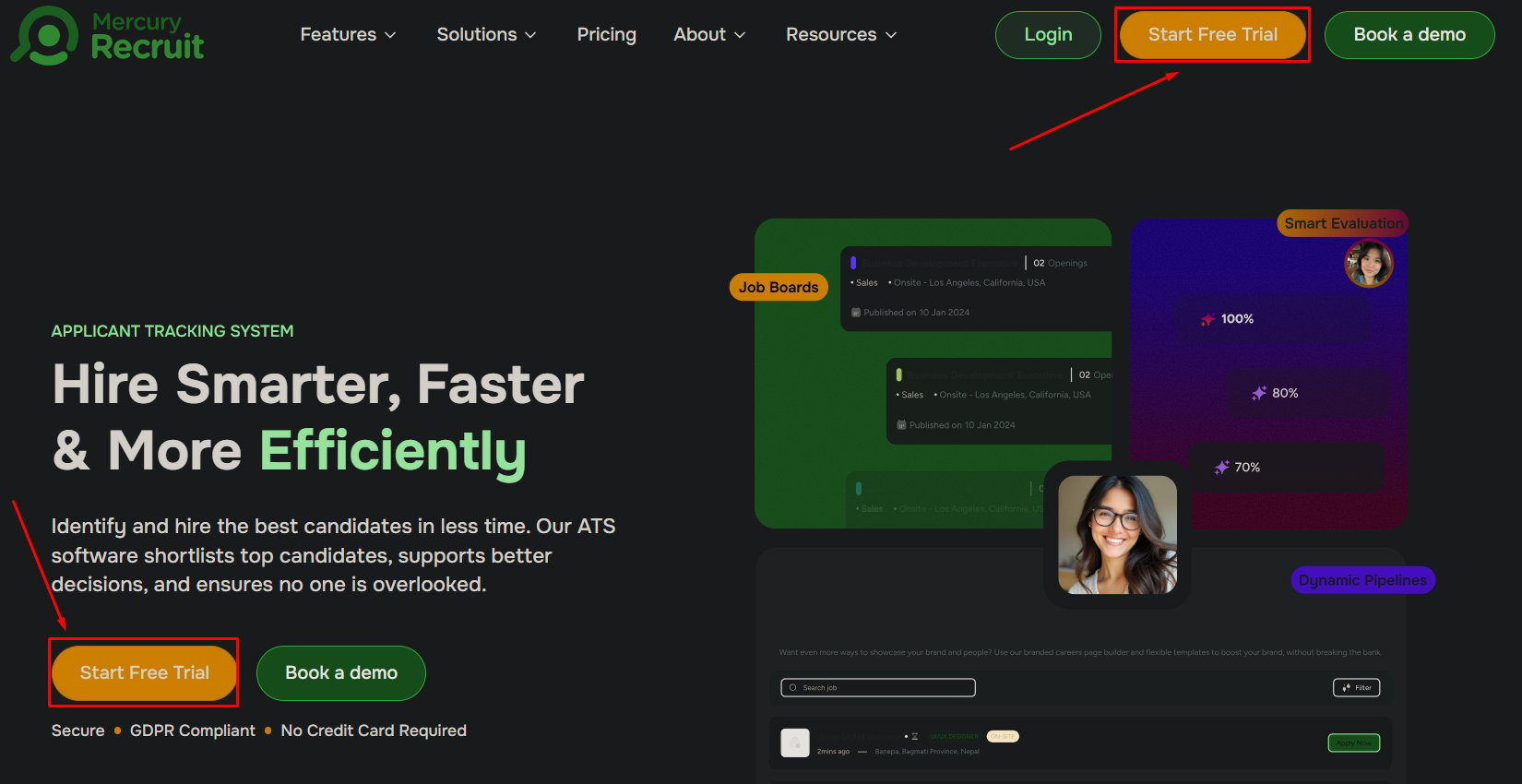
Go to the [Mercury Recruit website](https://mercury360.com/recruit) and click **Start Free Trial** in the top-right corner. You'll be redirected to the sign-up page.
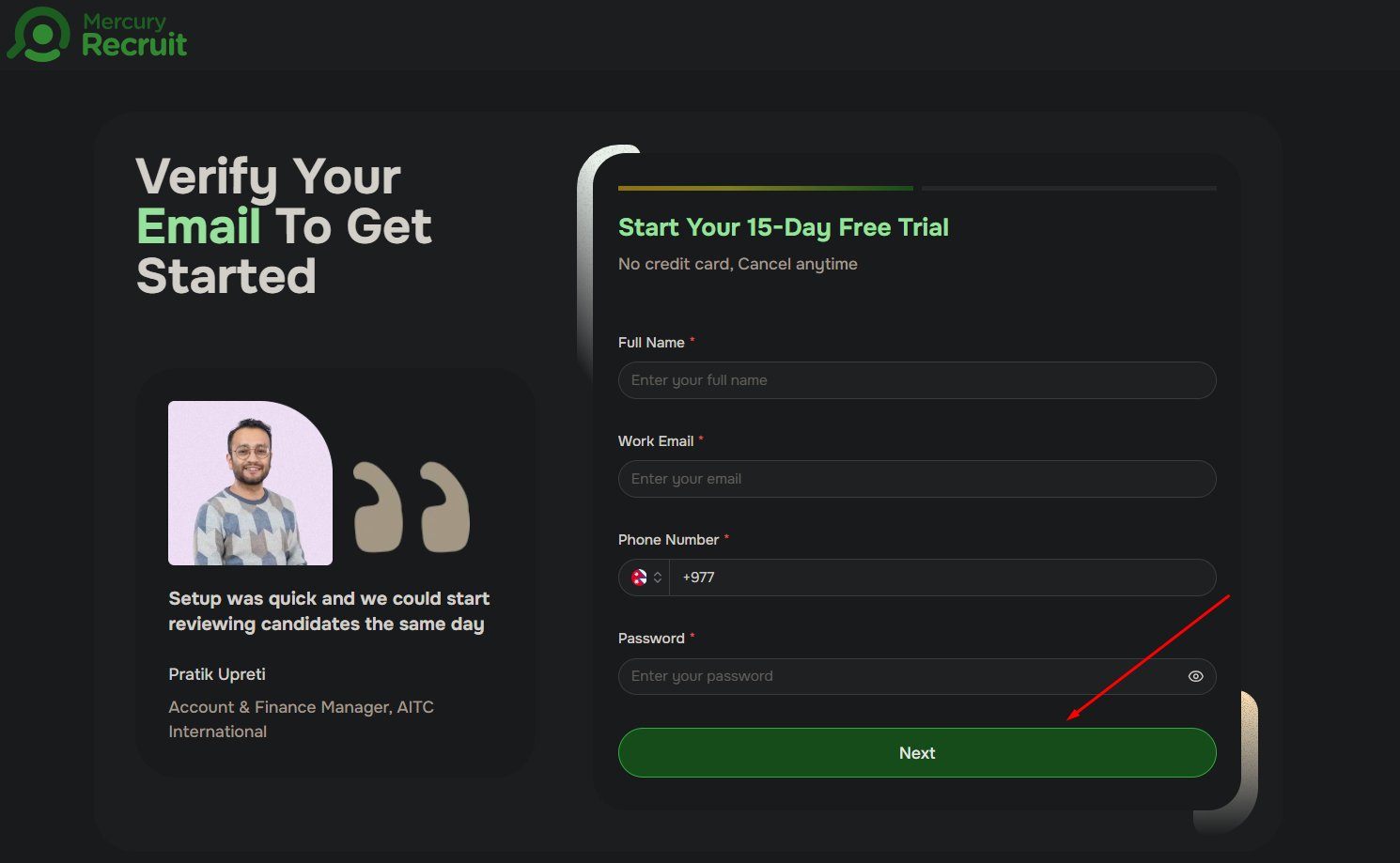
 Fill in the following fields, then click **Next**:
| Field | What to enter |
| ---------------- | ---------------------------------------------------------------------------- |
| **Full name** | Your legal or preferred name |
| **Work email** | A valid email you can access — this becomes your login |
| **Phone number** | A direct number for account recovery |
| **Password** | Must meet Mercury's strength criteria (length, mixed case, numbers, symbols) |
Use a work email rather than a personal one. Mercury uses your domain to auto-populate parts of your organization profile and to enable trusted-domain invites for teammates later.
Fill in the following fields, then click **Next**:
| Field | What to enter |
| ---------------- | ---------------------------------------------------------------------------- |
| **Full name** | Your legal or preferred name |
| **Work email** | A valid email you can access — this becomes your login |
| **Phone number** | A direct number for account recovery |
| **Password** | Must meet Mercury's strength criteria (length, mixed case, numbers, symbols) |
Use a work email rather than a personal one. Mercury uses your domain to auto-populate parts of your organization profile and to enable trusted-domain invites for teammates later.
 ##
After signing up, Mercury sends a verification email to the address you provided.
Look for a message from **Mercury**. If you don't see it within a couple of minutes, check your spam or junk folder.
This activates your account and unlocks login.
**You cannot log in until your email is verified.** This is where most users get stuck — don't skip it.
Try these steps in order:
1. Check your spam, junk, or promotions folder.
2. Wait two to three minutes — delivery can be delayed.
3. Confirm you typed your email correctly during sign-up.
4. On the login page, click **Resend verification email**.
If it still doesn't arrive, [contact support](/support/contact).
## Log in to your account
Once your email is verified:
1. Go to the [login page](https://mercury360.com/recruit).
2. Enter your **email** and **password**.
3. Click **Log in**.
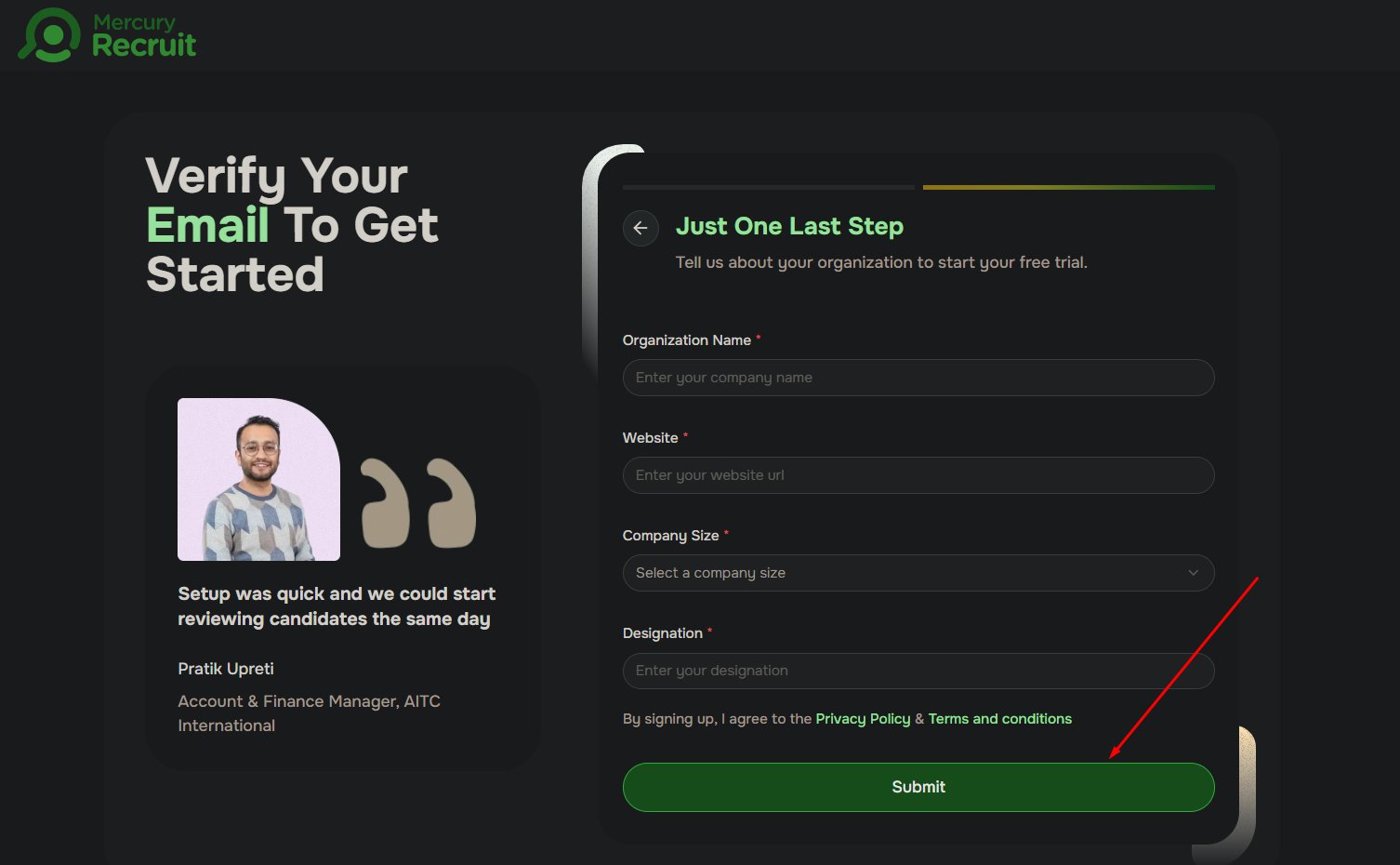
Provide the following, then click **Submit**:
* Organization name
* Website
* Company size
* Your designation
* Country, region, city, and ZIP code
##
After signing up, Mercury sends a verification email to the address you provided.
Look for a message from **Mercury**. If you don't see it within a couple of minutes, check your spam or junk folder.
This activates your account and unlocks login.
**You cannot log in until your email is verified.** This is where most users get stuck — don't skip it.
Try these steps in order:
1. Check your spam, junk, or promotions folder.
2. Wait two to three minutes — delivery can be delayed.
3. Confirm you typed your email correctly during sign-up.
4. On the login page, click **Resend verification email**.
If it still doesn't arrive, [contact support](/support/contact).
## Log in to your account
Once your email is verified:
1. Go to the [login page](https://mercury360.com/recruit).
2. Enter your **email** and **password**.
3. Click **Log in**.
Provide the following, then click **Submit**:
* Organization name
* Website
* Company size
* Your designation
* Country, region, city, and ZIP code
 After signing up, Mercury sends a verification email to the address you provided.
Look for a message from **Mercury**. If you don't see it within a couple of minutes, check your spam or junk folder.
This activates your account and unlocks login.
**You cannot log in until your email is verified.** This is where most users get stuck — don't skip it.
Try these steps in order:
1. Check your spam, junk, or promotions folder.
2. Wait two to three minutes — delivery can be delayed.
3. Confirm you typed your email correctly during sign-up.
4. On the login page, click **Resend verification email**.
If it still doesn't arrive, [contact support](/support/contact).
## Log in to your account
Once your email is verified:
1. Go to the [login page](https://mercury360.com/recruit).
2. Enter your **email** and **password**.
3. Click **Log in**.
## Set up your organization
The first time you log in, a setup popup appears. Complete both steps to continue.
* Upload your **company logo** (PNG or JPG recommended).
* Enter a short **company description**.
* Click **Next**.
* Enter your **company email**.
* Enter your **company phone number**.
* Click **Finish**.
## You're in
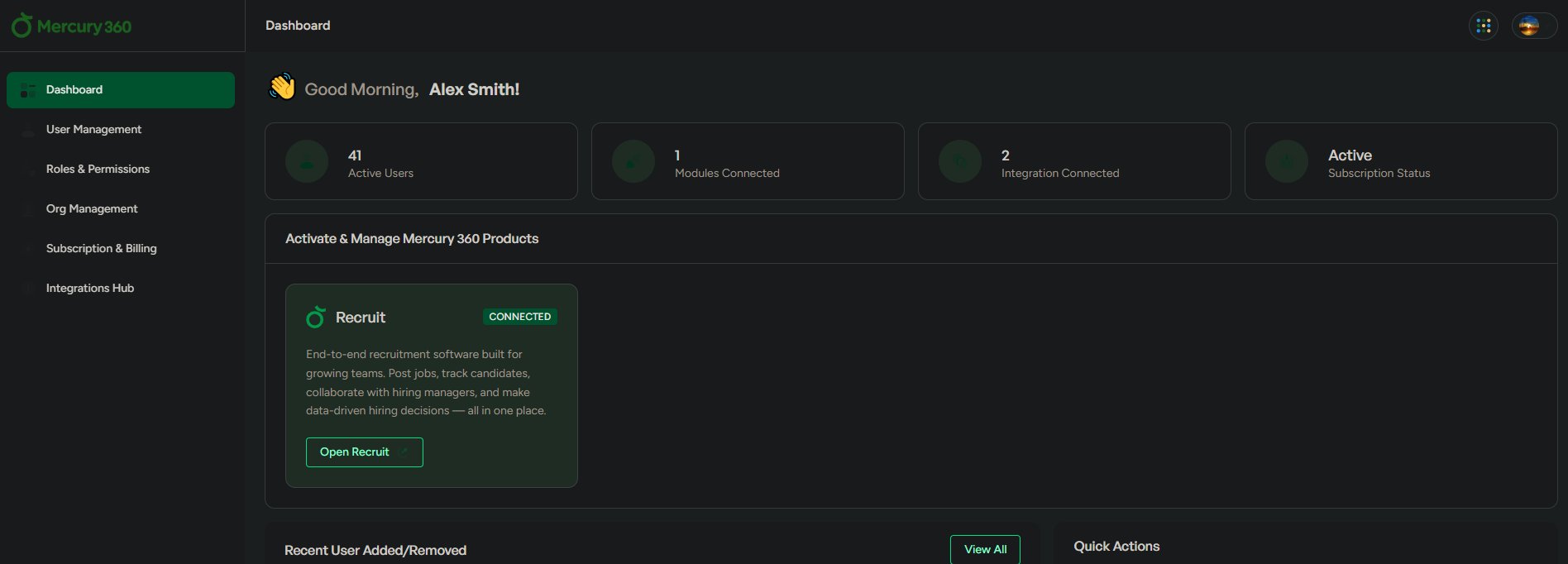
After setup, you land on the **Mercury Accounts dashboard** — your main control panel for managing your organization and every Mercury product.
Tour the left-side navigation and learn what each module does.
A deeper walkthrough of the post-login setup screen.
## Troubleshooting login
If you can't get in:
* Confirm your **email is verified** — check for the verification email if unsure.
* Double-check your **login credentials** for typos.
* Use **Forgot Password** to [reset your password](/accounts/getting-started/reset-password).
* Try logging in again from a clean browser session.
If the issue persists, [contact support](/support/contact).
After signing up, Mercury sends a verification email to the address you provided.
Look for a message from **Mercury**. If you don't see it within a couple of minutes, check your spam or junk folder.
This activates your account and unlocks login.
**You cannot log in until your email is verified.** This is where most users get stuck — don't skip it.
Try these steps in order:
1. Check your spam, junk, or promotions folder.
2. Wait two to three minutes — delivery can be delayed.
3. Confirm you typed your email correctly during sign-up.
4. On the login page, click **Resend verification email**.
If it still doesn't arrive, [contact support](/support/contact).
## Log in to your account
Once your email is verified:
1. Go to the [login page](https://mercury360.com/recruit).
2. Enter your **email** and **password**.
3. Click **Log in**.
## Set up your organization
The first time you log in, a setup popup appears. Complete both steps to continue.
* Upload your **company logo** (PNG or JPG recommended).
* Enter a short **company description**.
* Click **Next**.
* Enter your **company email**.
* Enter your **company phone number**.
* Click **Finish**.
## You're in
After setup, you land on the **Mercury Accounts dashboard** — your main control panel for managing your organization and every Mercury product.
Tour the left-side navigation and learn what each module does.
A deeper walkthrough of the post-login setup screen.
## Troubleshooting login
If you can't get in:
* Confirm your **email is verified** — check for the verification email if unsure.
* Double-check your **login credentials** for typos.
* Use **Forgot Password** to [reset your password](/accounts/getting-started/reset-password).
* Try logging in again from a clean browser session.
If the issue persists, [contact support](/support/contact).