> ## Documentation Index
> Fetch the complete documentation index at: https://help.mercury360.com/llms.txt
> Use this file to discover all available pages before exploring further.
# Dashboard Overview
> View users, check access status, perform quick actions like suspending users or resetting passwords, and understand user status across your organization.
User Management is the module where you **see and act on the people in your organization**. It's the right place to find a user, check their access, or take quick actions — but it's not where you define what roles can do.
Looking to **define what a role can or can't do**? That lives in **Roles & Permissions**, not here. User Management lets you assign existing roles to users — it doesn't let you create or edit the roles themselves.
## What you can do here
Browse every person with access to your organization.
See whether each user is active, invited, or inactive at a glance.
Find users by name, email, role, or status.
Suspend a user or send a password reset link in one click.
## When to use User Management
Open this module when you need to:
* Find a **specific user** in the system
* **Check access or status** for a teammate
* **Verify module access** for a user
* **Suspend or restore** a user's access
* **Reset a password** on behalf of someone who's locked out
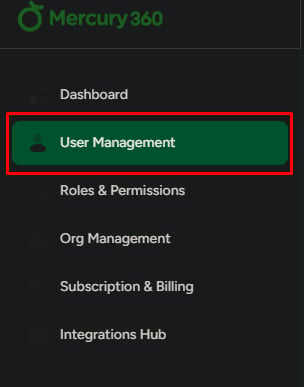
## How to access User Management
The left navigation panel is always visible from the dashboard.
The User Management page opens in the main view on the right.
 ## The user list
The user list shows every user in your organization. Each row includes:
| Column | What it shows |
| ----------------- | ----------------------------------------------------- |
| **Name** | The user's full name |
| **Email** | The address they use to log in |
| **System Role** | Organization Admin, Standard User, or Limited User |
| **Module Access** | Which Mercury modules they can use, and at what level |
| **Status** | Active, Invited, or Inactive |
| **Actions** | Suspend or reset password directly from the row |
Use the search bar and filters at the top of the list to narrow results quickly.
## Available actions
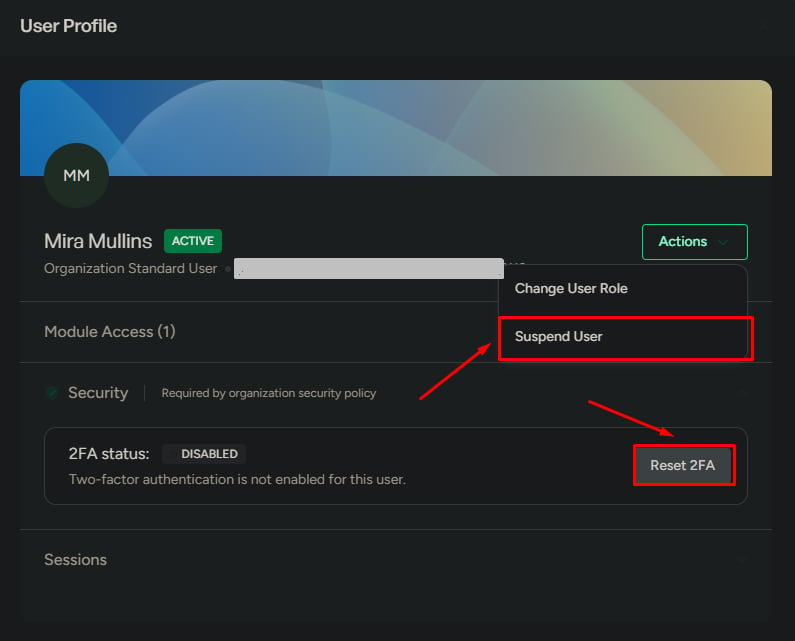
Two actions are available directly from the user list:
Temporarily disables a user's access to the system. They can't log in or use any module until you restore access. Use this when someone leaves temporarily, changes roles, or you need to lock an account quickly.
Sends a password reset link to the user's email. Use this when a teammate is locked out and can't reset their own password from the login page.
## The user list
The user list shows every user in your organization. Each row includes:
| Column | What it shows |
| ----------------- | ----------------------------------------------------- |
| **Name** | The user's full name |
| **Email** | The address they use to log in |
| **System Role** | Organization Admin, Standard User, or Limited User |
| **Module Access** | Which Mercury modules they can use, and at what level |
| **Status** | Active, Invited, or Inactive |
| **Actions** | Suspend or reset password directly from the row |
Use the search bar and filters at the top of the list to narrow results quickly.
## Available actions
Two actions are available directly from the user list:
Temporarily disables a user's access to the system. They can't log in or use any module until you restore access. Use this when someone leaves temporarily, changes roles, or you need to lock an account quickly.
Sends a password reset link to the user's email. Use this when a teammate is locked out and can't reset their own password from the login page.
 ## User status types
Every user has one of three statuses. The status determines whether they can log in and use modules.
* User has **accepted** the invitation
* User **can log in** to the system
* User **can access** assigned modules
* Invitation has been **sent but not accepted**
* User **cannot log in** yet
* Access becomes Active **after they accept**
* User access has been **disabled**
* User **cannot log in**
* No module access is available
## How status changes
Statuses transition based on invitations and admin actions:
| From | To | Trigger |
| -------- | -------- | --------------------------- |
| Invited | Active | User accepts the invitation |
| Active | Inactive | Admin suspends the user |
| Inactive | Active | Admin restores access |
## What to be careful about
Actions in this module take effect immediately and affect real people's work:
* **Suspending a user instantly blocks their access** — anything they have open is interrupted.
* **Reset password** should only be used when the user can't reset their own — it invalidates their current credentials.
* **Incorrect actions can disrupt active work** for your team. Double-check the row you're acting on.
## Next steps
Invite teammates and assign system and module roles.
Search, filter, and act on the users already in your workspace.
## User status types
Every user has one of three statuses. The status determines whether they can log in and use modules.
* User has **accepted** the invitation
* User **can log in** to the system
* User **can access** assigned modules
* Invitation has been **sent but not accepted**
* User **cannot log in** yet
* Access becomes Active **after they accept**
* User access has been **disabled**
* User **cannot log in**
* No module access is available
## How status changes
Statuses transition based on invitations and admin actions:
| From | To | Trigger |
| -------- | -------- | --------------------------- |
| Invited | Active | User accepts the invitation |
| Active | Inactive | Admin suspends the user |
| Inactive | Active | Admin restores access |
## What to be careful about
Actions in this module take effect immediately and affect real people's work:
* **Suspending a user instantly blocks their access** — anything they have open is interrupted.
* **Reset password** should only be used when the user can't reset their own — it invalidates their current credentials.
* **Incorrect actions can disrupt active work** for your team. Double-check the row you're acting on.
## Next steps
Invite teammates and assign system and module roles.
Search, filter, and act on the users already in your workspace.