> ## Documentation Index
> Fetch the complete documentation index at: https://help.mercury360.com/llms.txt
> Use this file to discover all available pages before exploring further.
# Dashboard Overview | Monitor Hiring Activity at a Glance
> Use the Mercury Recruit dashboard to monitor hiring status, team activity, candidate movement, and system performance from one place.
The **Mercury Recruit dashboard** gives you a high-level view of what’s happening across hiring. Use it to spot trends, identify bottlenecks, and decide where to take action next.
The dashboard is your **daily starting point**. Use it for quick visibility, then open **Jobs**, **Candidates**, or **Reports** for detailed work.
## When to use the dashboard
Open the dashboard when you need to:
* Check overall **hiring status**
* Monitor **team activity**
* Track **candidate progress**
* Review **system usage and performance**
* Spot hiring bottlenecks before they slow down the team
## Open the dashboard
The dashboard opens by default when you log in.
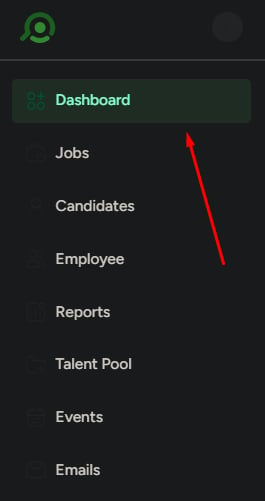
You can also open it anytime from the left navigation:
Click **Dashboard** from the left navigation menu.
Start with the top cards, then scan the activity and funnel sections for changes.
 ## What you can monitor
Track open positions, jobs opened, jobs filled, and overall hiring progress.
Review recent actions and see whether your team is actively moving work forward.
Monitor how candidates move through funnel stages and where drop-offs happen.
Check high-level system usage, users, departments, and uptime.
## Dashboard sections
The dashboard is split into sections, each focused on a different signal.
### Summary cards
The top cards give you quick scale and activity metrics.
| Card | What it tells you |
| --------------------- | ----------------------------------------------- |
| **Total users** | How many people have access to your workspace |
| **Total departments** | How your organization is structured |
| **System uptime** | Whether the platform is healthy |
| **Open positions** | The current size of your active hiring pipeline |
### Active Users & Roles
Shows how users are distributed across recruiting roles, such as:
* Recruit Admin
* Recruitment Manager
* Recruiter
* Interviewer
* External Collaborator
Use this to understand team structure and catch role imbalances—for example, too many interviewers without an owning recruiter.
### Recent user activity
Shows the most recent additions or removals in your workspace.
Click **View All** to open the full audit trail.
### Job Requisition Insights
Tracks hiring activity with two key metrics:
* **Jobs opened**
* **Jobs filled**
Use the date filters to compare activity across different time windows.
Use this for short-term tracking, weekly changes, and immediate hiring momentum.
Use this for a balanced view of monthly hiring trends.
Use this to compare quarters, campaigns, or specific hiring drives.
### Team Activities
Lists recent actions taken by team members.
Use **View All** to open the complete log. This helps you confirm whether teammates are actively moving candidates and jobs forward.
### Candidate Funnel
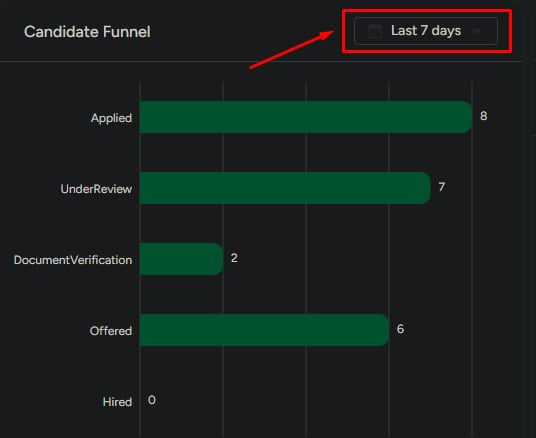
Shows candidate movement across hiring stages.
**Applied** → **Under Review** → **Document Verification** → **Offered** → **Hired**
Filter the funnel by **Last 7 days**, **Last 30 days**, or a **custom date range**.
A sudden drop between two stages usually points to a bottleneck—for example, a backlog in **Under Review** can mean recruiters need more bandwidth.
## What you can monitor
Track open positions, jobs opened, jobs filled, and overall hiring progress.
Review recent actions and see whether your team is actively moving work forward.
Monitor how candidates move through funnel stages and where drop-offs happen.
Check high-level system usage, users, departments, and uptime.
## Dashboard sections
The dashboard is split into sections, each focused on a different signal.
### Summary cards
The top cards give you quick scale and activity metrics.
| Card | What it tells you |
| --------------------- | ----------------------------------------------- |
| **Total users** | How many people have access to your workspace |
| **Total departments** | How your organization is structured |
| **System uptime** | Whether the platform is healthy |
| **Open positions** | The current size of your active hiring pipeline |
### Active Users & Roles
Shows how users are distributed across recruiting roles, such as:
* Recruit Admin
* Recruitment Manager
* Recruiter
* Interviewer
* External Collaborator
Use this to understand team structure and catch role imbalances—for example, too many interviewers without an owning recruiter.
### Recent user activity
Shows the most recent additions or removals in your workspace.
Click **View All** to open the full audit trail.
### Job Requisition Insights
Tracks hiring activity with two key metrics:
* **Jobs opened**
* **Jobs filled**
Use the date filters to compare activity across different time windows.
Use this for short-term tracking, weekly changes, and immediate hiring momentum.
Use this for a balanced view of monthly hiring trends.
Use this to compare quarters, campaigns, or specific hiring drives.
### Team Activities
Lists recent actions taken by team members.
Use **View All** to open the complete log. This helps you confirm whether teammates are actively moving candidates and jobs forward.
### Candidate Funnel
Shows candidate movement across hiring stages.
**Applied** → **Under Review** → **Document Verification** → **Offered** → **Hired**
Filter the funnel by **Last 7 days**, **Last 30 days**, or a **custom date range**.
A sudden drop between two stages usually points to a bottleneck—for example, a backlog in **Under Review** can mean recruiters need more bandwidth.
 ### Top Performers
Highlights top contributors for the selected period.
If no qualifying activity exists, the section may be empty. That usually means there was no matching activity in the selected date range.
## Customize the dashboard
Click **Edit** at the top of the page to adjust the layout and reorder sections to match how your team works.
## What to be careful about
* **Don’t make decisions on dashboard numbers alone** — confirm with detailed reports.
* **Always check the date filter** before drawing conclusions; the funnel can look very different across 7 vs 90 days.
* **An empty widget doesn’t always mean a problem** — it may simply mean no activity occurred in the selected window.
## What the dashboard is not for
* **Detailed reporting** — use **Reports** for deeper analysis.
* **Managing candidates** — use the **Candidates** module.
* **Configuring jobs** — use the **Jobs** module.
The dashboard is for high-level visibility only.
## Next steps
Find, filter, and act on jobs from one screen.
Review and organize candidates across all jobs.
### Top Performers
Highlights top contributors for the selected period.
If no qualifying activity exists, the section may be empty. That usually means there was no matching activity in the selected date range.
## Customize the dashboard
Click **Edit** at the top of the page to adjust the layout and reorder sections to match how your team works.
## What to be careful about
* **Don’t make decisions on dashboard numbers alone** — confirm with detailed reports.
* **Always check the date filter** before drawing conclusions; the funnel can look very different across 7 vs 90 days.
* **An empty widget doesn’t always mean a problem** — it may simply mean no activity occurred in the selected window.
## What the dashboard is not for
* **Detailed reporting** — use **Reports** for deeper analysis.
* **Managing candidates** — use the **Candidates** module.
* **Configuring jobs** — use the **Jobs** module.
The dashboard is for high-level visibility only.
## Next steps
Find, filter, and act on jobs from one screen.
Review and organize candidates across all jobs.