> ## Documentation Index
> Fetch the complete documentation index at: https://help.mercury360.com/llms.txt
> Use this file to discover all available pages before exploring further.
# Email Overview
> Learn how email works in Mercury Recruit and what you need to set up before using inbox and sending features.
The **Email** section is designed for hiring communication tied to **candidates** and **jobs**. Before you can view an inbox or send messages, you must connect an email account.
## Open the Email section
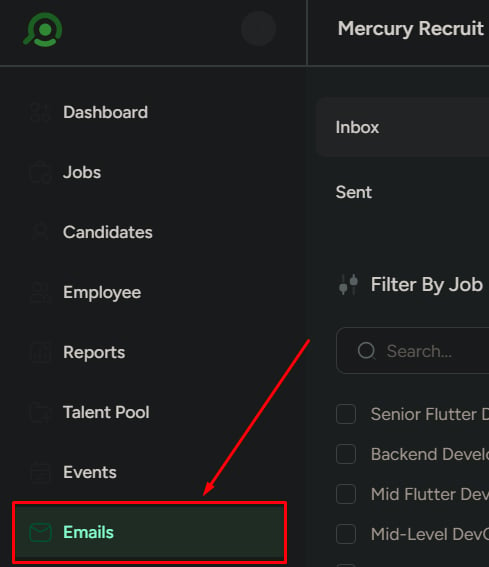
From the left sidebar, click **Emails**.
 ## If email is not connected
If you haven’t connected an email account yet, you’ll see a setup screen that includes:
* A message indicating email isn’t integrated
* An **Integrate Email** button
Until you connect an email account, no inbox or messages will be available.
## What happens after integration
Once your email is connected:
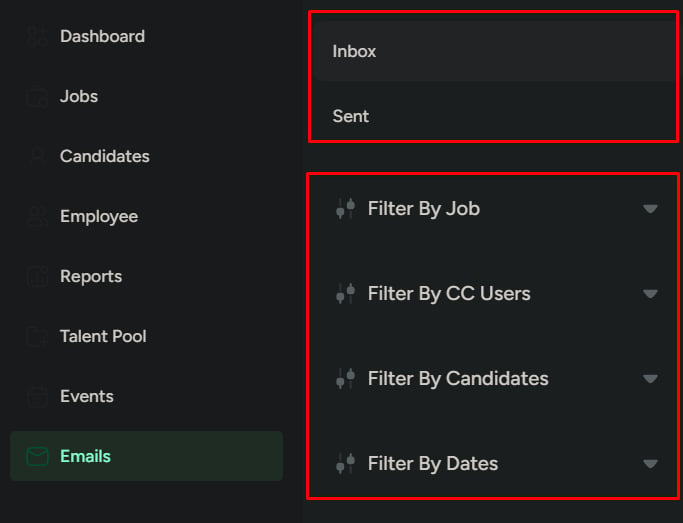
* **Inbox** and **Send emails** become available
* Emails can be filtered by:
* **Job**
* **Candidate**
* **Date**
* You can send emails directly from the **candidate workflow**
* Email history stays organized in one system for easier tracking
## If email is not connected
If you haven’t connected an email account yet, you’ll see a setup screen that includes:
* A message indicating email isn’t integrated
* An **Integrate Email** button
Until you connect an email account, no inbox or messages will be available.
## What happens after integration
Once your email is connected:
* **Inbox** and **Send emails** become available
* Emails can be filtered by:
* **Job**
* **Candidate**
* **Date**
* You can send emails directly from the **candidate workflow**
* Email history stays organized in one system for easier tracking
 ## What this page is not for
Do not use the Email section for:
* Personal or unrelated emails
* Internal team chat or discussions
* Storing files manually
* General non-hiring communication
This section is strictly for hiring communication linked to **candidates** and **jobs**.
## What this page is not for
Do not use the Email section for:
* Personal or unrelated emails
* Internal team chat or discussions
* Storing files manually
* General non-hiring communication
This section is strictly for hiring communication linked to **candidates** and **jobs**.