> ## Documentation Index
> Fetch the complete documentation index at: https://help.mercury360.com/llms.txt
> Use this file to discover all available pages before exploring further.
# Onboarding | Track New Joiners Before They Become Active
> Track employees in the joining phase, monitor onboarding progress, and identify delays before they become active employees.
The **Onboarding** tab tracks employees who are joining but are not fully active yet. Use it to monitor progress, spot delays, and manage onboarding workload across teams.
Onboarding is only for employees in the joining phase. Once onboarding is complete, the employee moves to the **People Directory** and is managed there.
## When to use this page
Use this page when you need to:
* Track **onboarding progress** for new employees
* Identify employees who are **not fully active yet**
* Monitor onboarding workload across departments
* Spot delayed onboarding records
## Open Onboarding
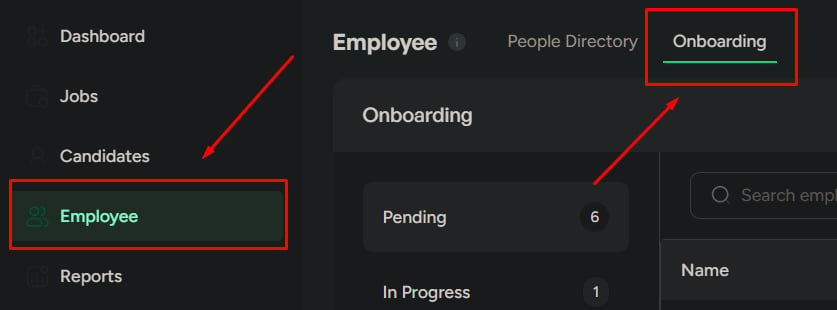
Open **Employees** from the left navigation.
Click the **Onboarding** tab to view employees grouped by onboarding stage.
 ## When onboarding starts
Onboarding begins when:
* A new employee is **added to the system**
* **Onboarding is assigned** as part of the employee setup
Onboarding doesn’t start from this page. It starts when an employee record is created. This page is for tracking onboarding already in motion.
## Onboarding stages
Onboarding has not started yet. The employee is waiting for setup.
Use this to identify **upcoming joins**.
Onboarding is planned but has not started. Tasks or a start date may already be set.
Use this to **prepare in advance**.
Tasks are currently being completed. The employee is actively being set up.
Use this to **track ongoing work**.
Onboarding is fully done. The employee is ready for normal work.
This is the **final state** before the employee moves into regular employee management.
## Search onboarding employees
Use search when you need to find someone quickly.
Type the **employee's name** in the search bar. Results update instantly.
## When onboarding starts
Onboarding begins when:
* A new employee is **added to the system**
* **Onboarding is assigned** as part of the employee setup
Onboarding doesn’t start from this page. It starts when an employee record is created. This page is for tracking onboarding already in motion.
## Onboarding stages
Onboarding has not started yet. The employee is waiting for setup.
Use this to identify **upcoming joins**.
Onboarding is planned but has not started. Tasks or a start date may already be set.
Use this to **prepare in advance**.
Tasks are currently being completed. The employee is actively being set up.
Use this to **track ongoing work**.
Onboarding is fully done. The employee is ready for normal work.
This is the **final state** before the employee moves into regular employee management.
## Search onboarding employees
Use search when you need to find someone quickly.
Type the **employee's name** in the search bar. Results update instantly.
 ## Filter onboarding employees
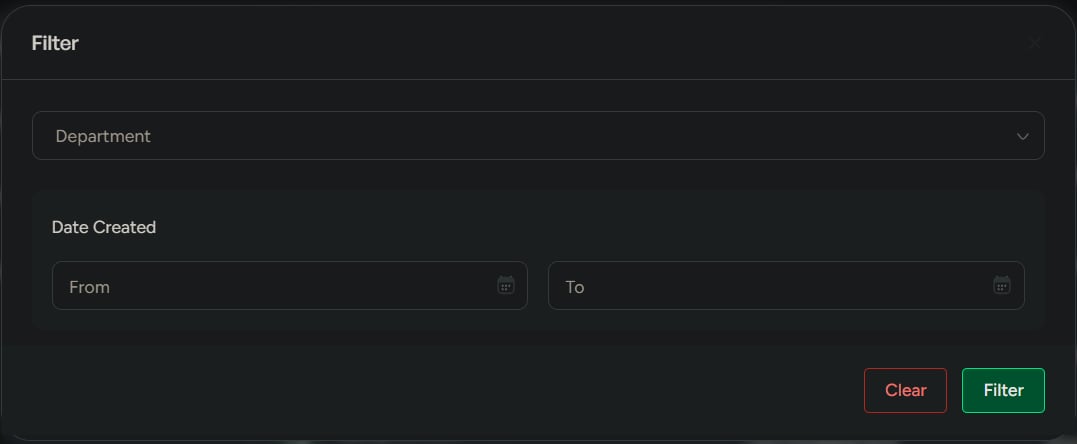
Click **Filter** to focus your tracking.
| Filter | Use when |
| -------------------------- | ----------------------------------------------------- |
| **Department** | Tracking onboarding for a specific team |
| **Date created (From/To)** | Checking employees added within a specific time range |
Use filters to track onboarding workload over time or by team.
## Filter onboarding employees
Click **Filter** to focus your tracking.
| Filter | Use when |
| -------------------------- | ----------------------------------------------------- |
| **Department** | Tracking onboarding for a specific team |
| **Date created (From/To)** | Checking employees added within a specific time range |
Use filters to track onboarding workload over time or by team.

 ## What you can do here
Review onboarding status by stage.
Identify employees stuck in early or incomplete stages.
Track onboarding volume across departments and time periods.
Use scheduled onboarding records to prepare before start dates.
Run a weekly check filtered by **Pending** + **created more than 7 days ago** to catch onboarding records that may have stalled.
## Related
Create the employee record that starts onboarding.
Manage employees after onboarding is complete.
## What you can do here
Review onboarding status by stage.
Identify employees stuck in early or incomplete stages.
Track onboarding volume across departments and time periods.
Use scheduled onboarding records to prepare before start dates.
Run a weekly check filtered by **Pending** + **created more than 7 days ago** to catch onboarding records that may have stalled.
## Related
Create the employee record that starts onboarding.
Manage employees after onboarding is complete.