> ## Documentation Index
> Fetch the complete documentation index at: https://help.mercury360.com/llms.txt
> Use this file to discover all available pages before exploring further.
# Job Details & Pipeline | Track Candidates Through Each Stage
> Review a job’s pipeline, track candidates by stage, switch between list and kanban views, and add candidates directly to the role.
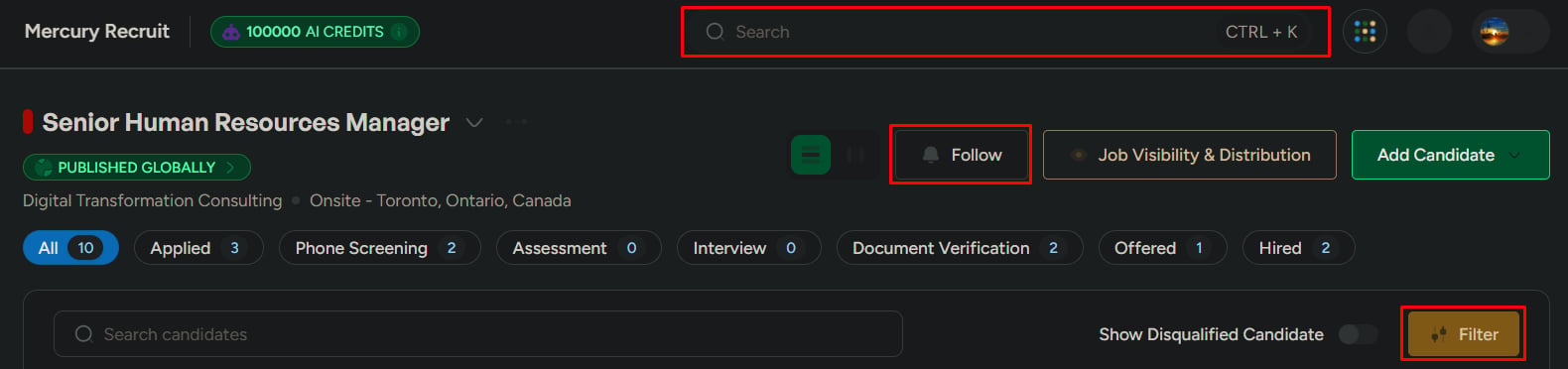
The **job details page** is the main workspace for a specific role. Use it to review candidates, track pipeline progress, and take action without leaving the job.
## When to use this page
Use the job details page when you need to:
* Review candidates for a specific role
* See where candidates are in the hiring pipeline
* Find candidates by name or filter by criteria
* Compare candidate progress across stages
* Add new candidates directly to the job
* Follow a role you’re actively working on
## Open a job
Click **Jobs** from the left navigation.
Click the **job name**, or click **View Job Details** from the job row.
 ## What you can do here
View candidates by hiring stage and identify where work is moving or stuck.
Use List view for detailed comparison or Kanban view for stage-based review.
Find candidates quickly by name, source, score range, applied date, and more.
Add candidates directly to the job using manual entry, AI resume import, or bulk upload.
## Understand the pipeline
Candidates are grouped by **hiring stages**. Each stage represents a step in the hiring process.
A typical pipeline may look like this:
Typical pipeline: **Applied** → **Phone Screening** → **Assessment** → **Interview** → **Document Verification** → **Offered** → **Hired**
Pipeline stages are configured per job. Your stages may look different depending on the pipeline template selected when the job was created.
## View candidates by stage
Click a **stage tab** to view candidates currently in that stage.
Use stage tabs to:
* Review candidates waiting at a specific step
* Spot bottlenecks in the hiring flow
* Compare how candidates are progressing
* Prioritize follow-up actions
## What you can do here
View candidates by hiring stage and identify where work is moving or stuck.
Use List view for detailed comparison or Kanban view for stage-based review.
Find candidates quickly by name, source, score range, applied date, and more.
Add candidates directly to the job using manual entry, AI resume import, or bulk upload.
## Understand the pipeline
Candidates are grouped by **hiring stages**. Each stage represents a step in the hiring process.
A typical pipeline may look like this:
Typical pipeline: **Applied** → **Phone Screening** → **Assessment** → **Interview** → **Document Verification** → **Offered** → **Hired**
Pipeline stages are configured per job. Your stages may look different depending on the pipeline template selected when the job was created.
## View candidates by stage
Click a **stage tab** to view candidates currently in that stage.
Use stage tabs to:
* Review candidates waiting at a specific step
* Spot bottlenecks in the hiring flow
* Compare how candidates are progressing
* Prioritize follow-up actions
 ## Switch pipeline view
Use **List view** when you need detailed comparison.
Best for:
* Reviewing candidate scores
* Sorting rows by key fields
* Comparing candidate details side by side
Use **Kanban view** when you need a visual pipeline overview.
Best for:
* Seeing candidate distribution by stage
* Spotting overloaded stages
* Moving through pipeline status quickly
## Switch pipeline view
Use **List view** when you need detailed comparison.
Best for:
* Reviewing candidate scores
* Sorting rows by key fields
* Comparing candidate details side by side
Use **Kanban view** when you need a visual pipeline overview.
Best for:
* Seeing candidate distribution by stage
* Spotting overloaded stages
* Moving through pipeline status quickly
 ## Search and filter candidates
Use search and filters when the pipeline has many candidates.
Use the **search bar** at the top of the pipeline to find a candidate by name.
Click **Filter** to narrow candidates by source, score range, applied date, and other available criteria.
Use the results to focus on the candidates that match your current hiring question.
## Follow a job
Click **Follow** to keep the role easy to access from your followed jobs list.
Use this when:
* You are actively working multiple roles
* You need to monitor progress frequently
* The job needs close follow-up
## Search and filter candidates
Use search and filters when the pipeline has many candidates.
Use the **search bar** at the top of the pipeline to find a candidate by name.
Click **Filter** to narrow candidates by source, score range, applied date, and other available criteria.
Use the results to focus on the candidates that match your current hiring question.
## Follow a job
Click **Follow** to keep the role easy to access from your followed jobs list.
Use this when:
* You are actively working multiple roles
* You need to monitor progress frequently
* The job needs close follow-up
 ## Add candidates to the job
Click **Add Candidate** to add candidates directly to this role.
See every option: manual entry, AI resume import, or bulk upload.
## Add candidates to the job
Click **Add Candidate** to add candidates directly to this role.
See every option: manual entry, AI resume import, or bulk upload.
 ## What to be careful about
Pipeline changes affect hiring visibility and reporting. Before moving, filtering, or updating candidates, confirm you are working in the correct job and stage.
* Moving candidates to the wrong stage can affect pipeline accuracy
* Filtering too narrowly may hide candidates who still need attention
* Adding candidates to the wrong job creates cleanup work later
* Different jobs may use different pipeline templates
## Related
Move, snooze, disqualify, evaluate, and communicate with candidates inside a job pipeline.
Edit, share, duplicate, or close jobs from the Jobs list.
## What to be careful about
Pipeline changes affect hiring visibility and reporting. Before moving, filtering, or updating candidates, confirm you are working in the correct job and stage.
* Moving candidates to the wrong stage can affect pipeline accuracy
* Filtering too narrowly may hide candidates who still need attention
* Adding candidates to the wrong job creates cleanup work later
* Different jobs may use different pipeline templates
## Related
Move, snooze, disqualify, evaluate, and communicate with candidates inside a job pipeline.
Edit, share, duplicate, or close jobs from the Jobs list.