> ## Documentation Index
> Fetch the complete documentation index at: https://help.mercury360.com/llms.txt
> Use this file to discover all available pages before exploring further.
# Manage Jobs | Search, Filter, and Track Open Roles
> Find, filter, follow, and manage jobs from the Jobs page, with list and kanban views for different hiring workflows.
The **Jobs** page is the main workspace for everything you’re hiring for. Use it to find specific roles, review progress, narrow large lists, and switch between detailed and visual views.
## When to use this page
Use the Jobs page when you need to:
* Find a **specific job**
* Review **job status and progress**
* Manage **multiple jobs** at once
* Focus on jobs by status, department, location, or work type
* Switch between list and kanban views
## Open Jobs
Click **Jobs** in the left navigation menu.
The full list of jobs in your workspace opens by default.
 ## What you can do here
Find a role quickly by typing the job name.
Narrow the list by department, location, work type, keywords, or status.
Use List view for details or Kanban view for a visual overview.
Follow or pin jobs so important roles stay easy to find.
## Search for a job
Use search when you know the job name.
Type the **job name** in the search bar. The list updates automatically as you type.
## What you can do here
Find a role quickly by typing the job name.
Narrow the list by department, location, work type, keywords, or status.
Use List view for details or Kanban view for a visual overview.
Follow or pin jobs so important roles stay easy to find.
## Search for a job
Use search when you know the job name.
Type the **job name** in the search bar. The list updates automatically as you type.
 ## Filter jobs
Use filters to narrow a long list to the exact slice you need.
Click **Filter** above the list.
Choose one or more filters to focus the list.
| Filter | Use when |
| -------------- | ------------------------------------------- |
| **Department** | Focusing on one team |
| **Location** | Hiring in a specific area |
| **Work type** | Focusing on remote, hybrid, or onsite roles |
| **Keywords** | Searching for similar roles |
## Filter jobs
Use filters to narrow a long list to the exact slice you need.
Click **Filter** above the list.
Choose one or more filters to focus the list.
| Filter | Use when |
| -------------- | ------------------------------------------- |
| **Department** | Focusing on one team |
| **Location** | Hiring in a specific area |
| **Work type** | Focusing on remote, hybrid, or onsite roles |
| **Keywords** | Searching for similar roles |
 ## Filter by status
Use the status dropdown to focus on jobs at a specific stage.
Jobs currently accepting and reviewing candidates.
Jobs you’ve started but haven’t published yet.
Jobs that no longer accept new candidates.
Completed or past jobs kept for reference.
Jobs waiting for approval before going live.
## Filter by status
Use the status dropdown to focus on jobs at a specific stage.
Jobs currently accepting and reviewing candidates.
Jobs you’ve started but haven’t published yet.
Jobs that no longer accept new candidates.
Completed or past jobs kept for reference.
Jobs waiting for approval before going live.
 ## View followed jobs
Toggle **Followed Jobs** to show only jobs you’ve chosen to track.
Follow only the jobs you’re actively working on. Following everything makes the view less useful.
## View followed jobs
Toggle **Followed Jobs** to show only jobs you’ve chosen to track.
Follow only the jobs you’re actively working on. Following everything makes the view less useful.
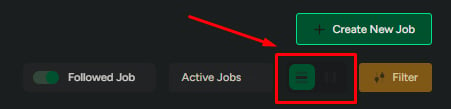
 ## Switch view
Mercury Recruit gives you two ways to view jobs. Choose the one that matches the task.
Use **List view** for detailed comparison and quick scanning of job metadata.
Best when you need:
* Exact numbers
* Dates
* Status details
* Owner or creator information
Use **Kanban view** for a visual overview grouped by stage or status.
Best when you need:
* Distribution at a glance
* A quick sense of workload
* Visual tracking across job states
## Switch view
Mercury Recruit gives you two ways to view jobs. Choose the one that matches the task.
Use **List view** for detailed comparison and quick scanning of job metadata.
Best when you need:
* Exact numbers
* Dates
* Status details
* Owner or creator information
Use **Kanban view** for a visual overview grouped by stage or status.
Best when you need:
* Distribution at a glance
* A quick sense of workload
* Visual tracking across job states
 ## View Job Details (From List)
Each row surfaces key facts without requiring you to open the job.
| Column | What it shows |
| ------------------------ | --------------------------------------------- |
| **Job name** | The role’s title |
| **Openings** | Number of positions to fill |
| **Candidates** | Total applicants in the pipeline |
| **Work type & location** | Remote, hybrid, or onsite, plus location |
| **Publish status** | Active, Draft, Closed, Archived, or Requested |
| **Expiry date** | When the job stops accepting candidates |
| **Created by** | The owner or creator of the requisition |
Click **View Job Details** on any row to open the full job.
## Quick actions
Use quick actions for fast updates without opening a job.
Track updates to this job in your followed list.
Keep important jobs near the top of the Jobs list.
Open the **Create New Job** flow.
## Related
Build a new job from scratch or with AI.
Edit, extend, share, duplicate, preview, or close jobs from the list.
## View Job Details (From List)
Each row surfaces key facts without requiring you to open the job.
| Column | What it shows |
| ------------------------ | --------------------------------------------- |
| **Job name** | The role’s title |
| **Openings** | Number of positions to fill |
| **Candidates** | Total applicants in the pipeline |
| **Work type & location** | Remote, hybrid, or onsite, plus location |
| **Publish status** | Active, Draft, Closed, Archived, or Requested |
| **Expiry date** | When the job stops accepting candidates |
| **Created by** | The owner or creator of the requisition |
Click **View Job Details** on any row to open the full job.
## Quick actions
Use quick actions for fast updates without opening a job.
Track updates to this job in your followed list.
Keep important jobs near the top of the Jobs list.
Open the **Create New Job** flow.
## Related
Build a new job from scratch or with AI.
Edit, extend, share, duplicate, preview, or close jobs from the list.