> ## Documentation Index
> Fetch the complete documentation index at: https://help.mercury360.com/llms.txt
> Use this file to discover all available pages before exploring further.
# Profile Menu & Account Settings | Manage Profile, Security, and Sessions
Manage your profile, security settings, sessions, and account preferences from one place.
Use the profile menu for quick actions (theme, logout). Use the profile page for account details and security settings.
## From here, you can
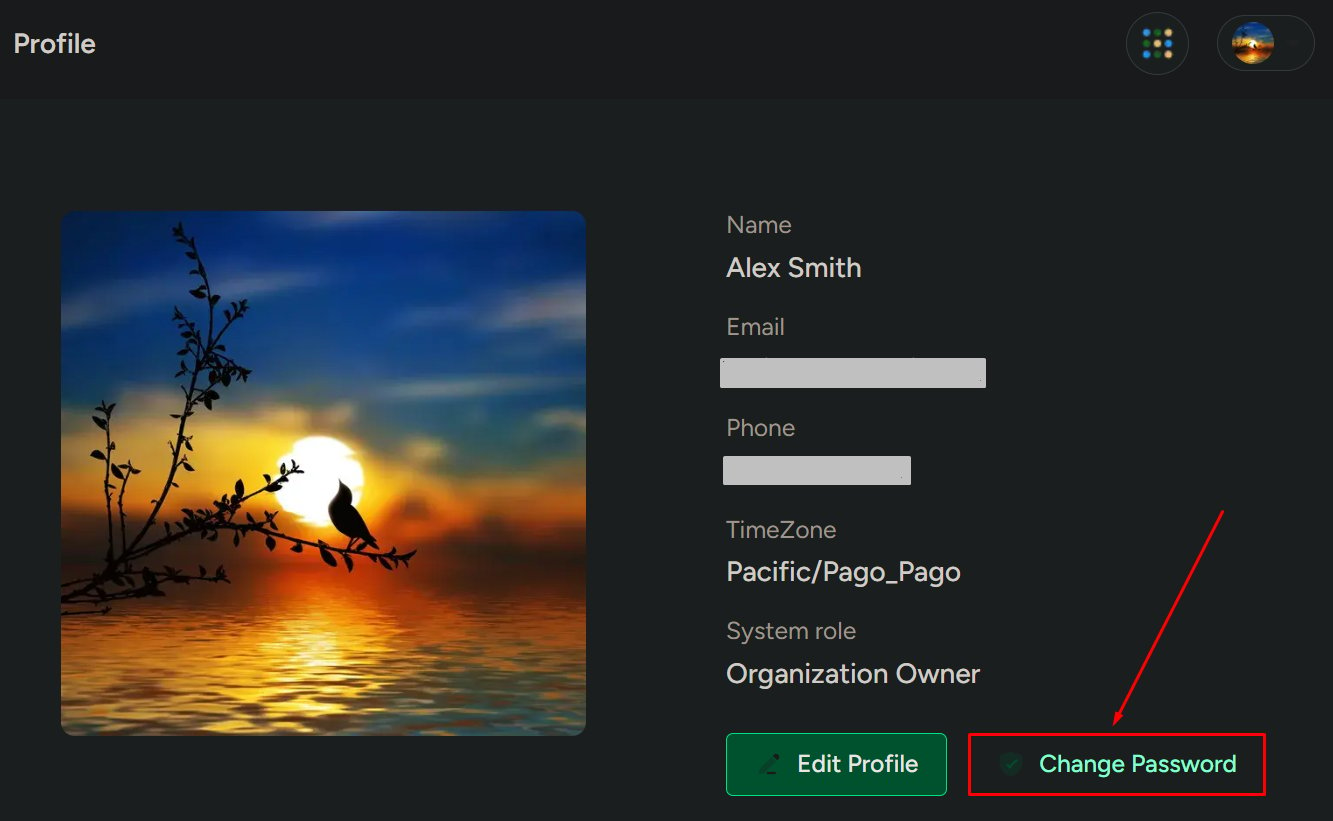
View your profile details (like email, time zone, and system role).
Edit personal information such as your profile image, number, and time zone.
Update your account password to keep your account secure.
Enable 2FA for extra security when signing in.
Review active sessions and terminate logins on other devices if needed.
Switch between light and dark theme appearance.
Sign out of the system when you’re done or switching accounts.
## When to use this
Use this page when you need to:
* Update your personal profile
* Change your password
* Enable or manage 2FA
* Review active login sessions
* Switch between light and dark theme
* Log out of the system
## Open the profile menu
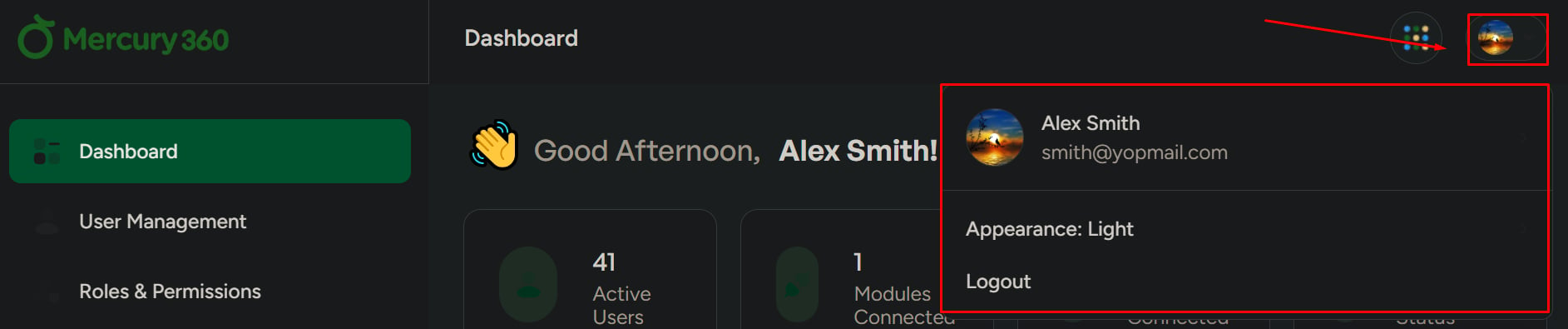
Go to the top navigation bar and click the **profile icon**.
From the dropdown, you can access **Profile**, **Appearance**, and **Logout**.
 ## Switch theme (Appearance)
Use **Appearance** to change the system theme.
* Light mode
* Dark mode
Theme changes apply instantly across the system.
## Open your profile page
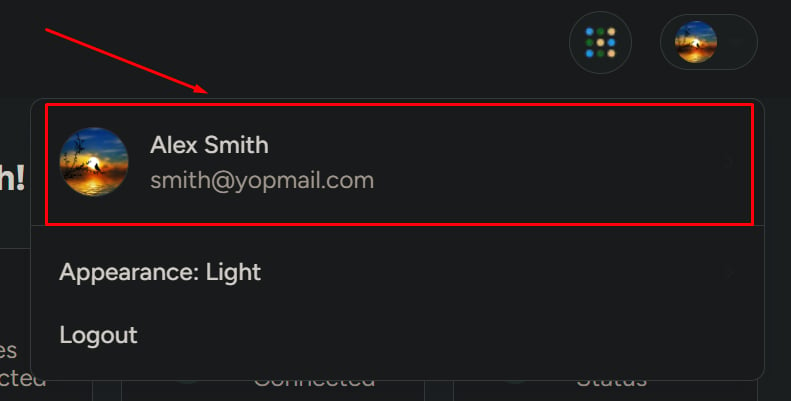
In the profile dropdown, click your **name** or select **Profile**.
## Switch theme (Appearance)
Use **Appearance** to change the system theme.
* Light mode
* Dark mode
Theme changes apply instantly across the system.
## Open your profile page
In the profile dropdown, click your **name** or select **Profile**.
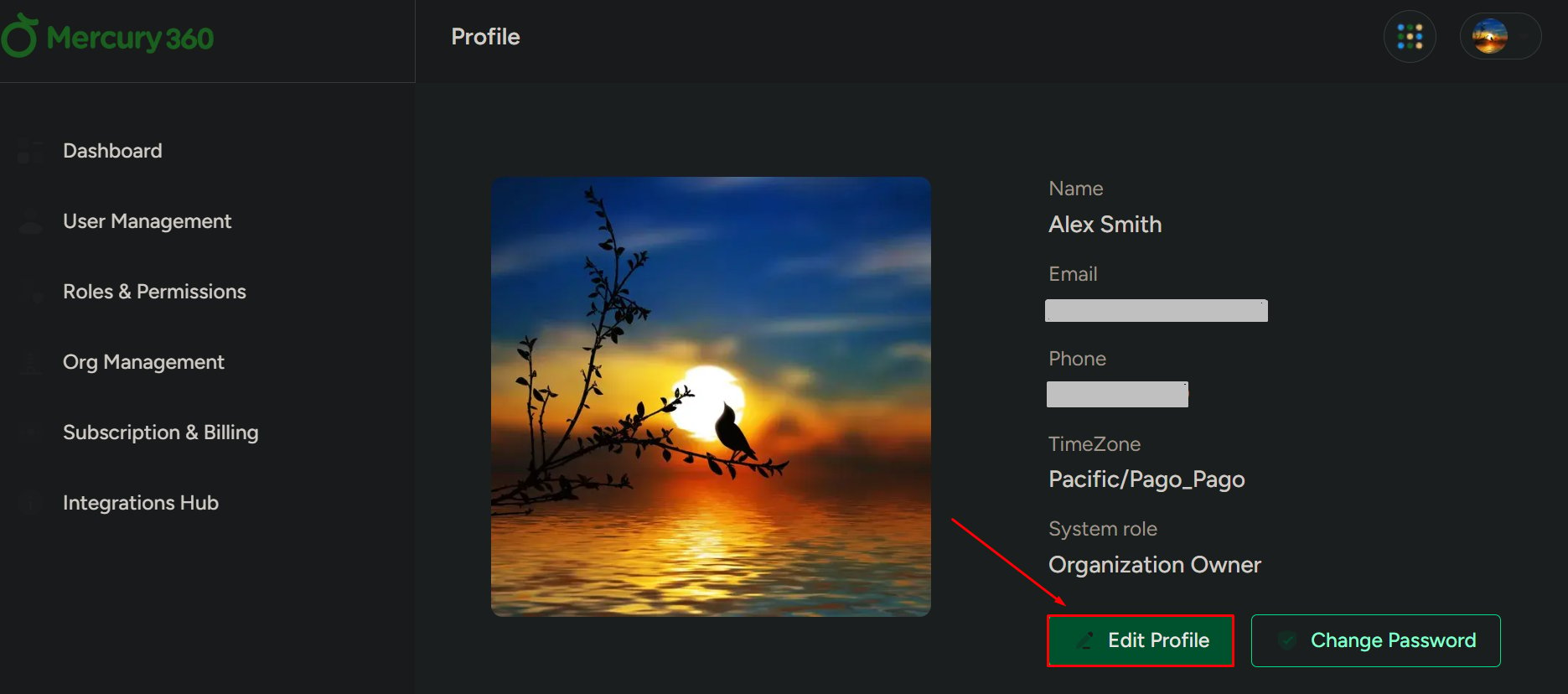
 ## Profile details
Your profile may include:
* Profile image
* Name
* Email
* Phone number
* Time zone
* System role
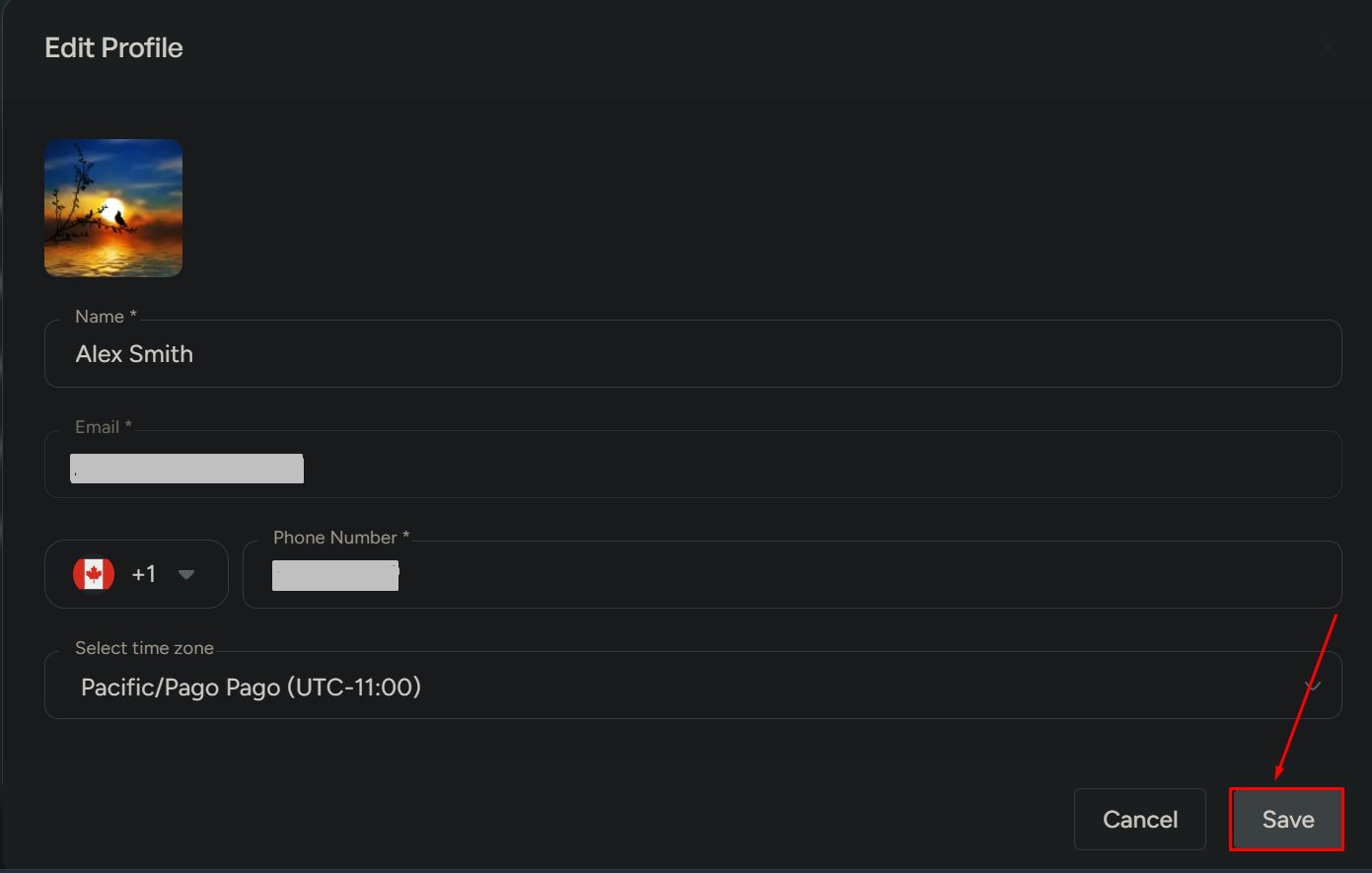
## Edit profile
You can update:
* Profile image
* Phone number
* Time zone
Click **Edit Profile**.
Make your changes in the form.
Click **Save** to apply updates.
## Profile details
Your profile may include:
* Profile image
* Name
* Email
* Phone number
* Time zone
* System role
## Edit profile
You can update:
* Profile image
* Phone number
* Time zone
Click **Edit Profile**.
Make your changes in the form.
Click **Save** to apply updates.
 ## Change password
Use this to update your account password.
Click **Change Password**.
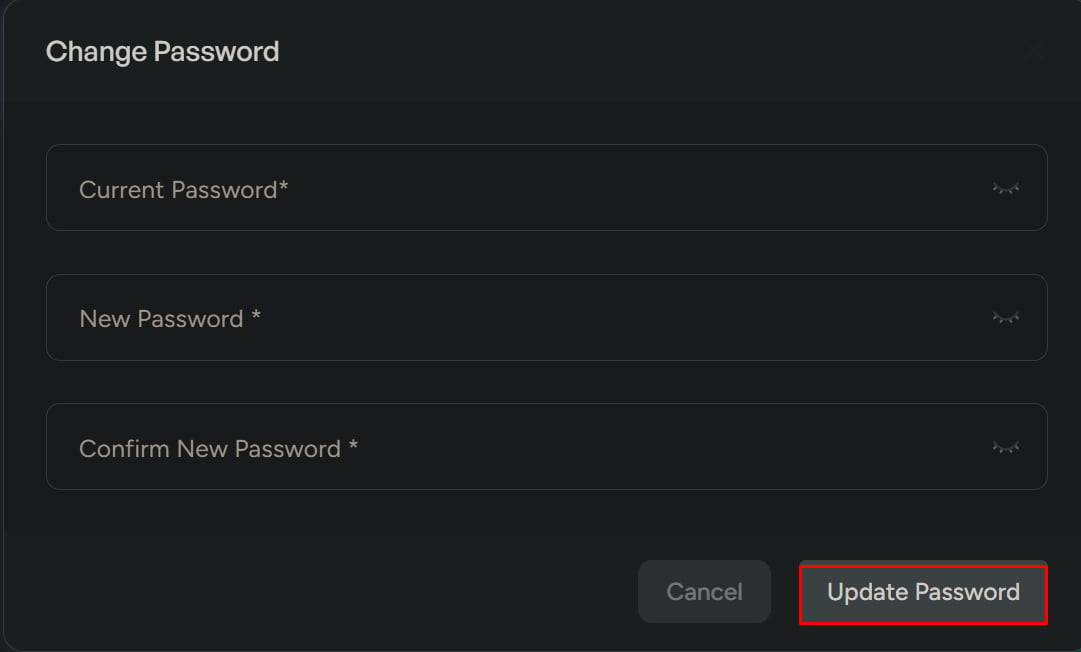
Enter your current password to confirm your identity.
Enter a new password and confirm it.
Click **Update Password** to save the change.
## Change password
Use this to update your account password.
Click **Change Password**.
Enter your current password to confirm your identity.
Enter a new password and confirm it.
Click **Update Password** to save the change.
 ## Two-factor authentication (2FA)
Enable 2FA to add an extra layer of security during login.
Click **Setup 2FA**.
Follow the prompts to connect your authenticator app.
Enter the one-time verification code when prompted during login.
After setup, you’ll be required to enter a verification code each time you sign in.
## Sessions
Use Sessions to view and manage active logins.
You can see:
* Active sessions
* Current session
## Terminate sessions
Use this to log out from active devices.
Click **Terminate Sessions**.
This will log out active sessions from other devices.
## Two-factor authentication (2FA)
Enable 2FA to add an extra layer of security during login.
Click **Setup 2FA**.
Follow the prompts to connect your authenticator app.
Enter the one-time verification code when prompted during login.
After setup, you’ll be required to enter a verification code each time you sign in.
## Sessions
Use Sessions to view and manage active logins.
You can see:
* Active sessions
* Current session
## Terminate sessions
Use this to log out from active devices.
Click **Terminate Sessions**.
This will log out active sessions from other devices.