> ## Documentation Index
> Fetch the complete documentation index at: https://help.mercury360.com/llms.txt
> Use this file to discover all available pages before exploring further.
# Role Details and Module Permissions | Review User Access Across Modules
View what a role can do and which users are assigned to it.
This section is view-only. You can’t edit permissions from this page.
## When to use this
Use this when you need to:
* Verify what a role can do before assigning it
* Compare access between roles
* Check which users are assigned to a role
* Review module-specific permissions (e.g., Recruit roles)
## Open role details
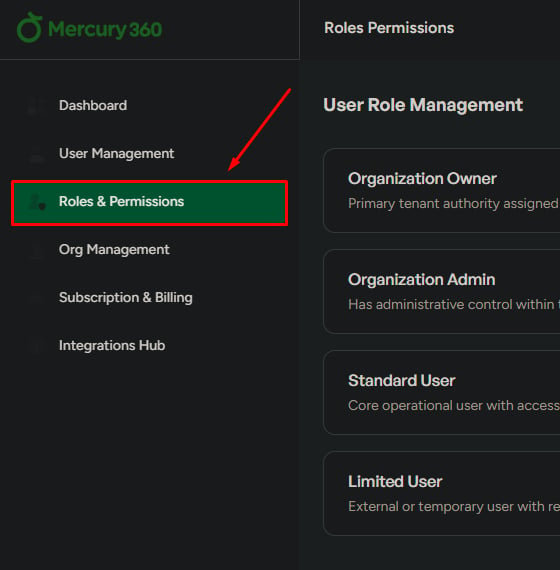
In the left navigation, click **Roles & Permissions**.
Click any role (for example, **Organization Owner**, **Admin**, or **Standard Limited**).
A popup or new tab opens with the role details.
 ## What you see in role details
What actions the role is allowed to perform across the system.
Everyone currently assigned to the selected role.
### Permissions
Use this to:
* Understand the role’s access level
* Compare permissions with other roles
### Users in this role
Use this to:
* Confirm who has this access level
* Review how access is distributed across your team
## Module permissions
System roles define overall access. Module permissions define what a role can do inside a specific product (for example, **Mercury Recruit**).
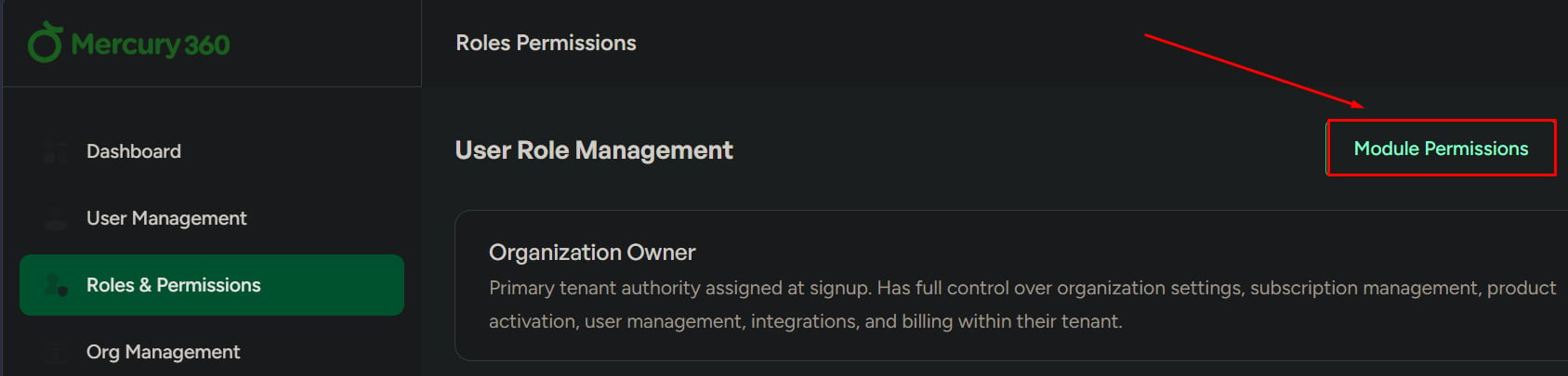
From **Roles & Permissions**, click **Module Permissions**.
You’ll see module roles and their detailed permissions.
## What you see in role details
What actions the role is allowed to perform across the system.
Everyone currently assigned to the selected role.
### Permissions
Use this to:
* Understand the role’s access level
* Compare permissions with other roles
### Users in this role
Use this to:
* Confirm who has this access level
* Review how access is distributed across your team
## Module permissions
System roles define overall access. Module permissions define what a role can do inside a specific product (for example, **Mercury Recruit**).
From **Roles & Permissions**, click **Module Permissions**.
You’ll see module roles and their detailed permissions.
 ## Important behavior
* **System roles** define overall access level
* **Module roles** define actions inside a product
* Changes to a module role apply to **all users assigned to that role**
## What to be careful about
Apply least-privilege access. Assign the minimum access needed to complete the job.
* Giving higher access than required increases risk
* Skipping module permissions review can cause workflow and access issues
## Important behavior
* **System roles** define overall access level
* **Module roles** define actions inside a product
* Changes to a module role apply to **all users assigned to that role**
## What to be careful about
Apply least-privilege access. Assign the minimum access needed to complete the job.
* Giving higher access than required increases risk
* Skipping module permissions review can cause workflow and access issues