
.png?fit=max&auto=format&n=wMd7bxoi6I_Hm3IN&q=85&s=fe686234f9638b0fbfbc991ca32f7bc3)
Mercury Accounts is the control panel for your entire organization. Once you’re in, you’ll use it to manage users, roles, billing, and every other Mercury product you subscribe to.
Before you begin
Start your free trial
1
Visit the Mercury Recruit website
Go to the Mercury Recruit website and click Start Free Trial in the top-right corner. You’ll be redirected to the sign-up page.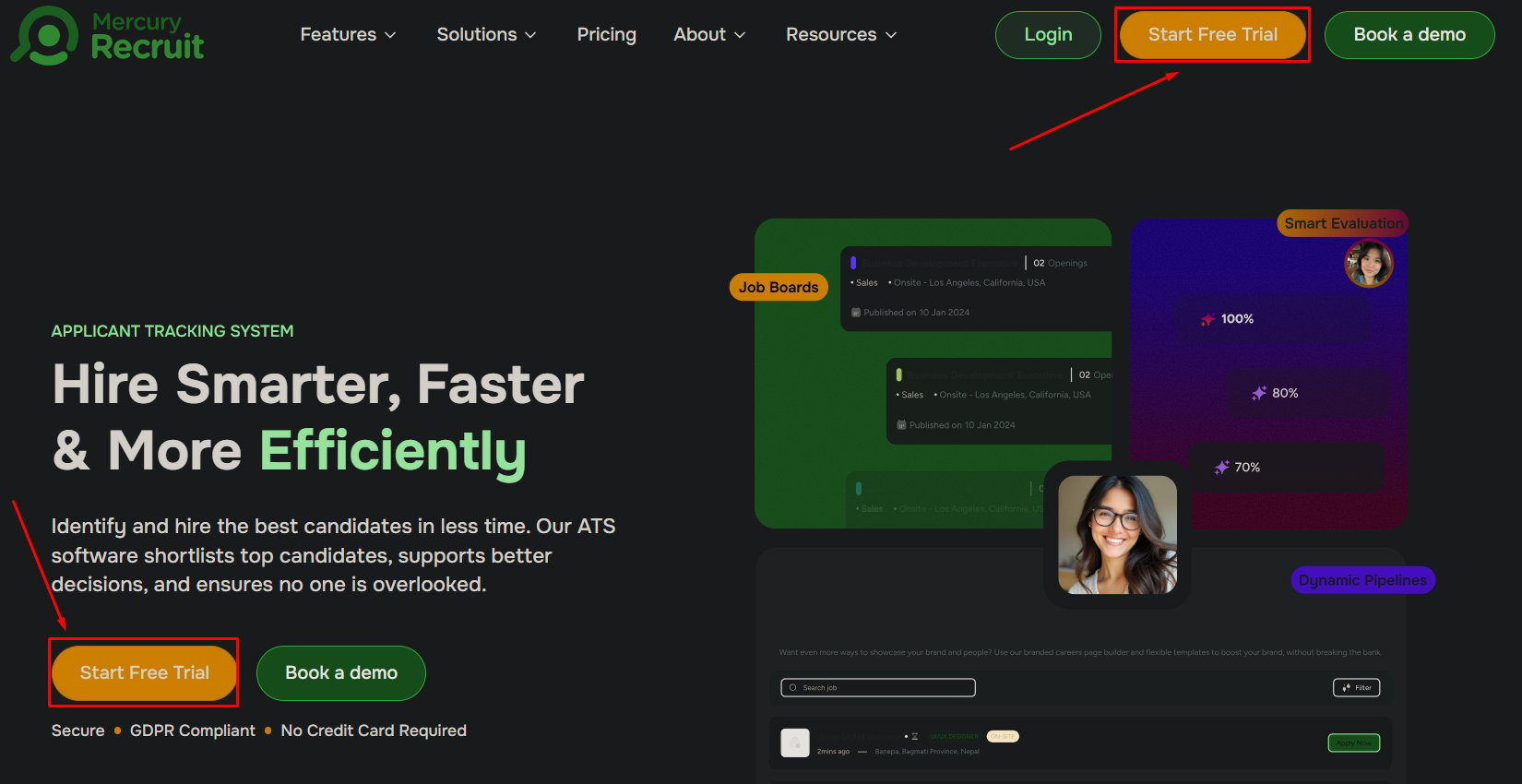
2
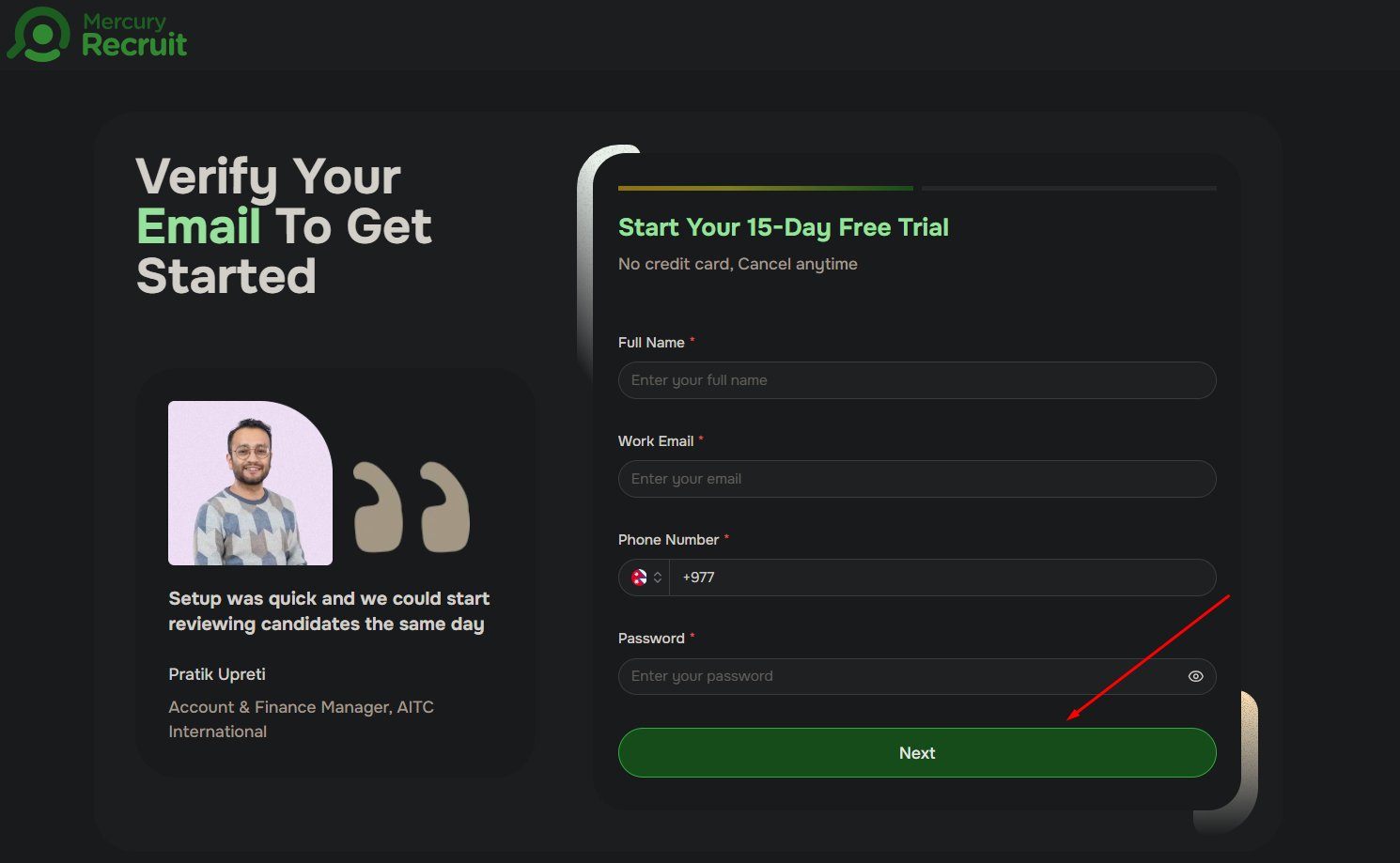
Enter your personal details
3
Verify your email
After signing up, Mercury sends a verification email to the address you provided.
1
Open your inbox
Look for a message from Mercury. If you don’t see it within a couple of minutes, check your spam or junk folder.
2
Click Verify Your Email
This activates your account and unlocks login.
Didn't receive the verification email?
Didn't receive the verification email?
Try these steps in order:
- Check your spam, junk, or promotions folder.
- Wait two to three minutes — delivery can be delayed.
- Confirm you typed your email correctly during sign-up.
- On the login page, click Resend verification email.
Log in to your account
Once your email is verified:- Go to the login page.
- Enter your email and password.
- Click Log in.
4
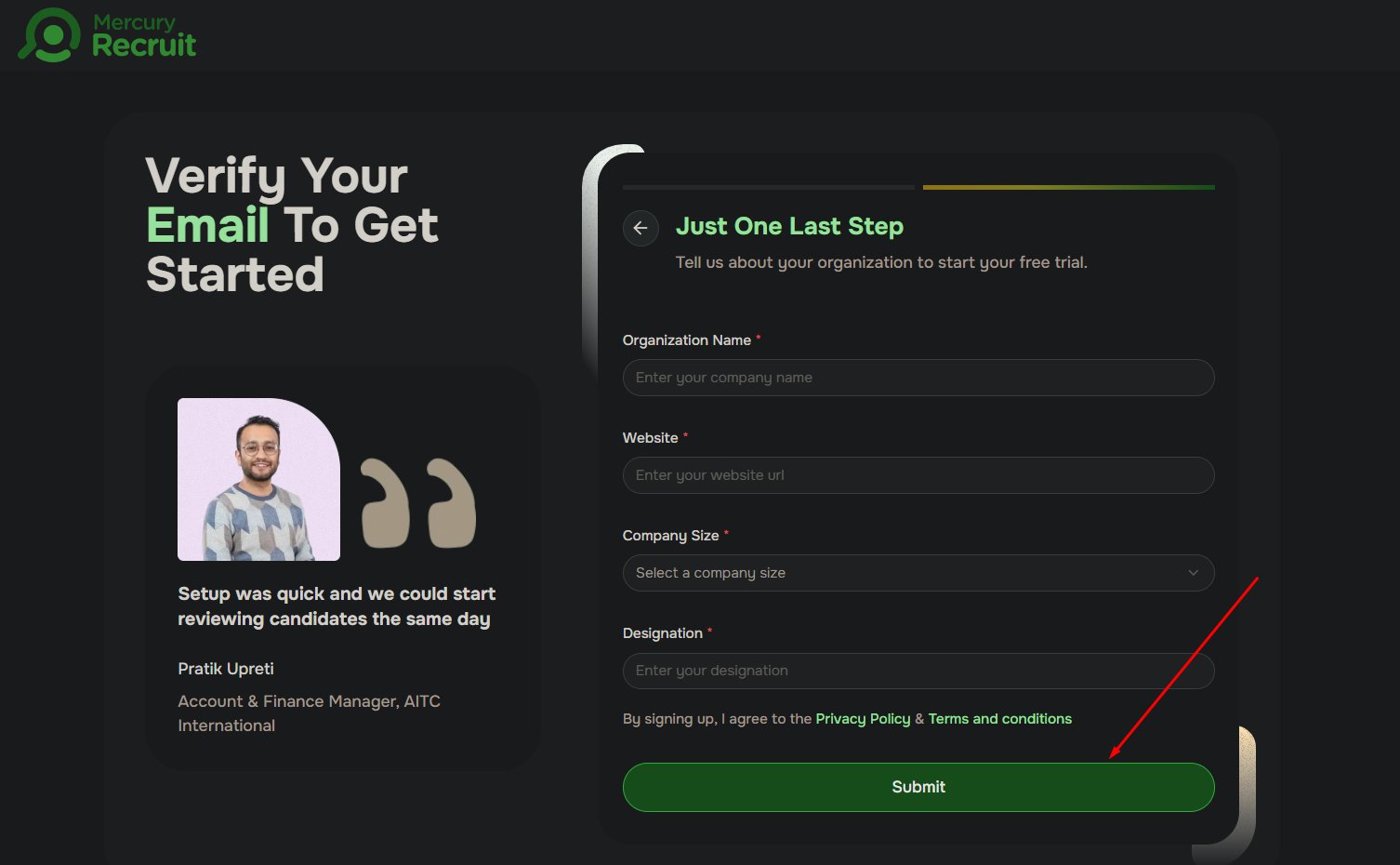
Enter your organization details
Provide the following, then click Submit:
- Organization name
- Website
- Company size
- Your designation
- Country, region, city, and ZIP code
1
Open your inbox
Look for a message from Mercury. If you don’t see it within a couple of minutes, check your spam or junk folder.
2
Click Verify Your Email
This activates your account and unlocks login.
Didn't receive the verification email?
Didn't receive the verification email?
Try these steps in order:
- Check your spam, junk, or promotions folder.
- Wait two to three minutes — delivery can be delayed.
- Confirm you typed your email correctly during sign-up.
- On the login page, click Resend verification email.
Log in to your account
Once your email is verified:- Go to the login page.
- Enter your email and password.
- Click Log in.
Set up your organization
The first time you log in, a setup popup appears. Complete both steps to continue.- Step 1: Company details
- Step 2: Contact details
- Upload your company logo (PNG or JPG recommended).
- Enter a short company description.
- Click Next.
You’re in
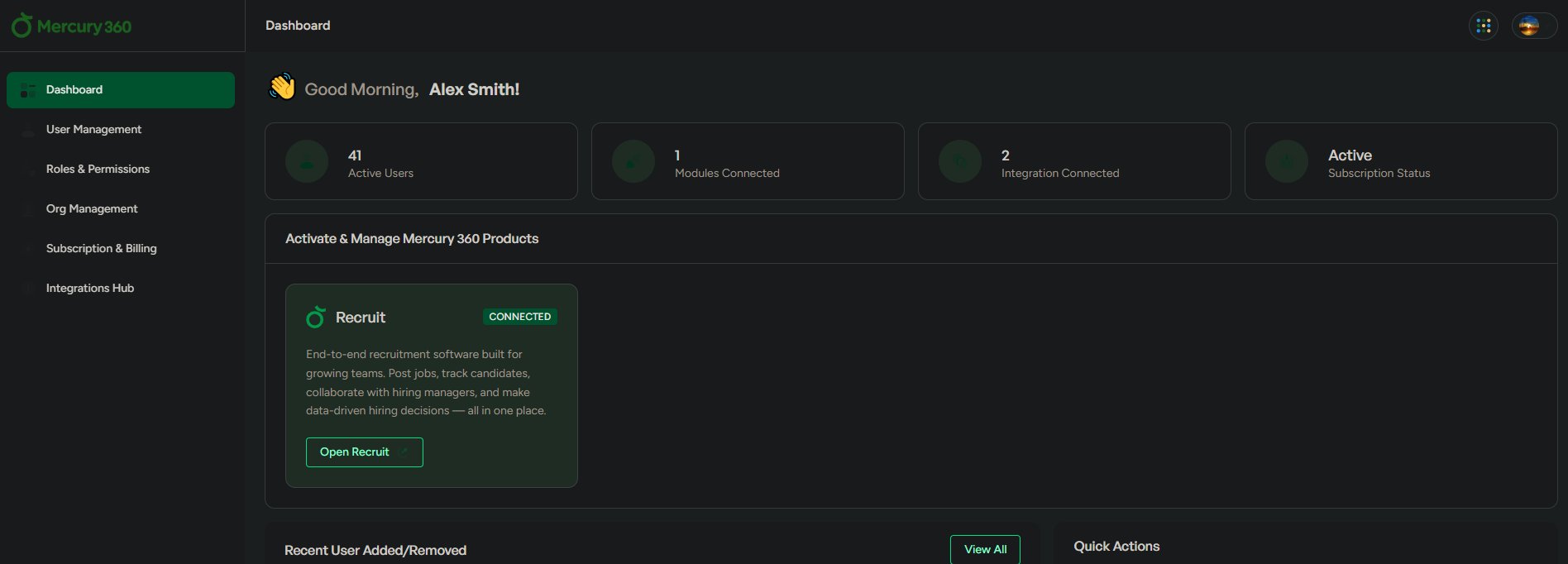
After setup, you land on the Mercury Accounts dashboard — your main control panel for managing your organization and every Mercury product.Understand your dashboard
Tour the left-side navigation and learn what each module does.
Complete first-time setup
A deeper walkthrough of the post-login setup screen.
Troubleshooting login
If you can’t get in:- Confirm your email is verified — check for the verification email if unsure.
- Double-check your login credentials for typos.
- Use Forgot Password to reset your password.
- Try logging in again from a clean browser session.