.png?fit=max&auto=format&n=wMd7bxoi6I_Hm3IN&q=85&s=fe686234f9638b0fbfbc991ca32f7bc3)
Changes made here affect how your organization appears and operates across the system.
When to use this
Use this page when you need to:- Update organization contact information
- Add or manage office locations
- Update the company description and branding
- Review subscription information
- Change product brand colors
Open Organization Management
1
Open Organization Management
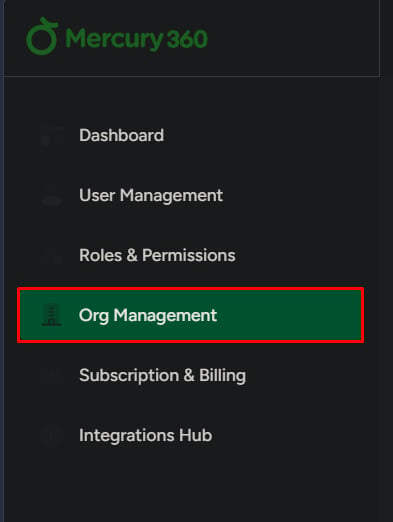
Click Organization Management from the left navigation panel.
2
Open the details/branding area
Select the organization details section (company info, locations, branding).
Manage company information
You can update:- Company name
- Phone number
- Website
- Career portal
- Industry type
- Organization size
Click Save after making changes to apply updates.
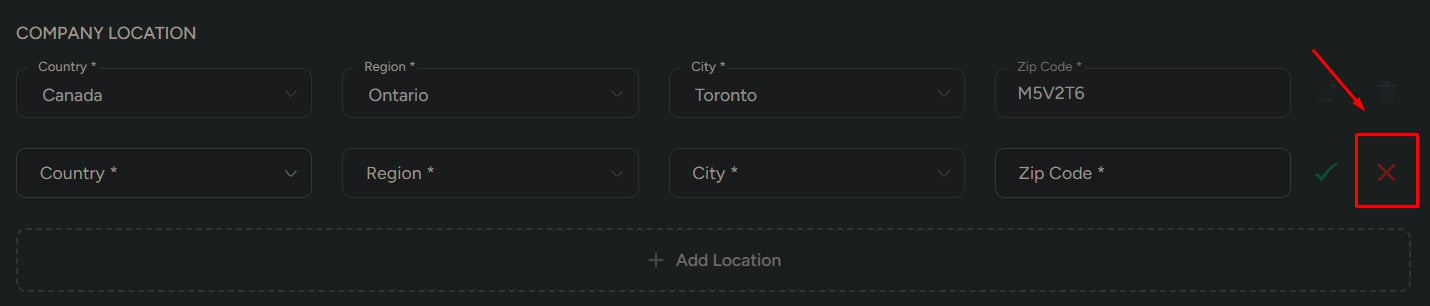
Manage company locations
Each location typically includes:- Country
- Region
- City
- Zip code
Add a location
1
Add Location
Click Add Location.
2
Enter details and save
Fill in the location fields and click Save.

Delete a location
1
Delete the location
Click the delete icon next to a location and confirm.
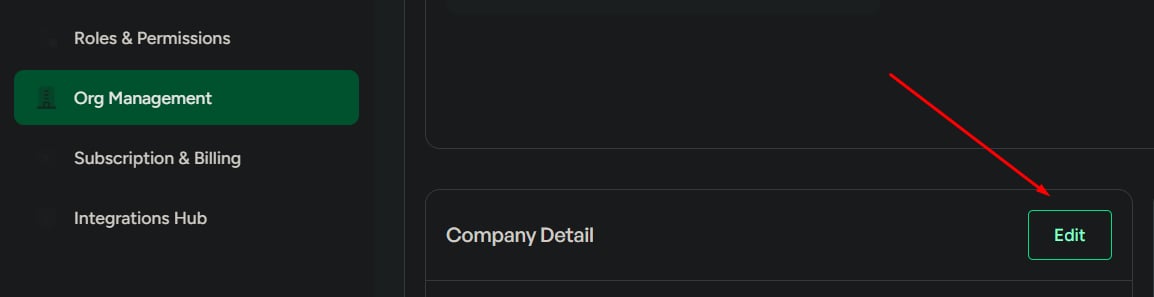
Manage company details (description)
This section includes:- Company name
- Company description
1
Edit and save
Click Edit, update the description, then click Save.
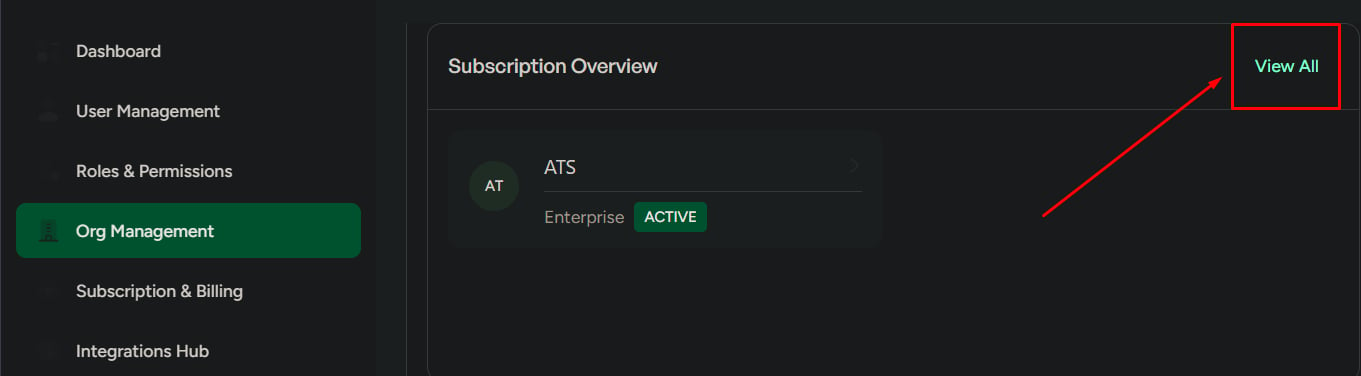
View subscription overview
This section displays:- Current subscription plan
- Module list
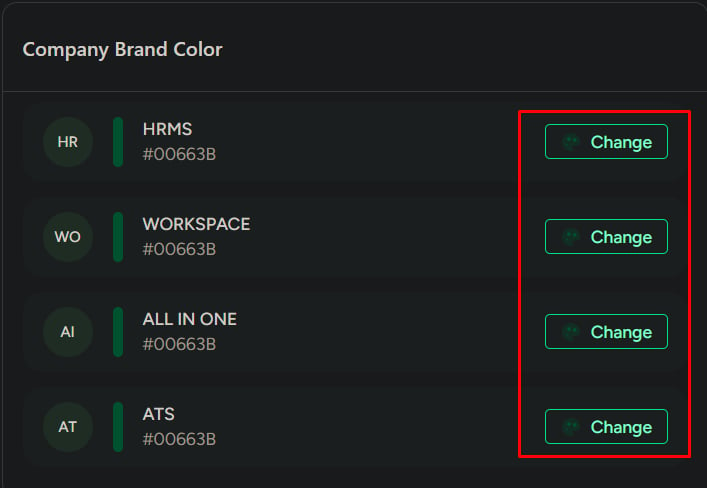
Manage company brand colors
Brand color settings may be available for products like:- HRMS
- Workspace
- All in One
- ATS
1
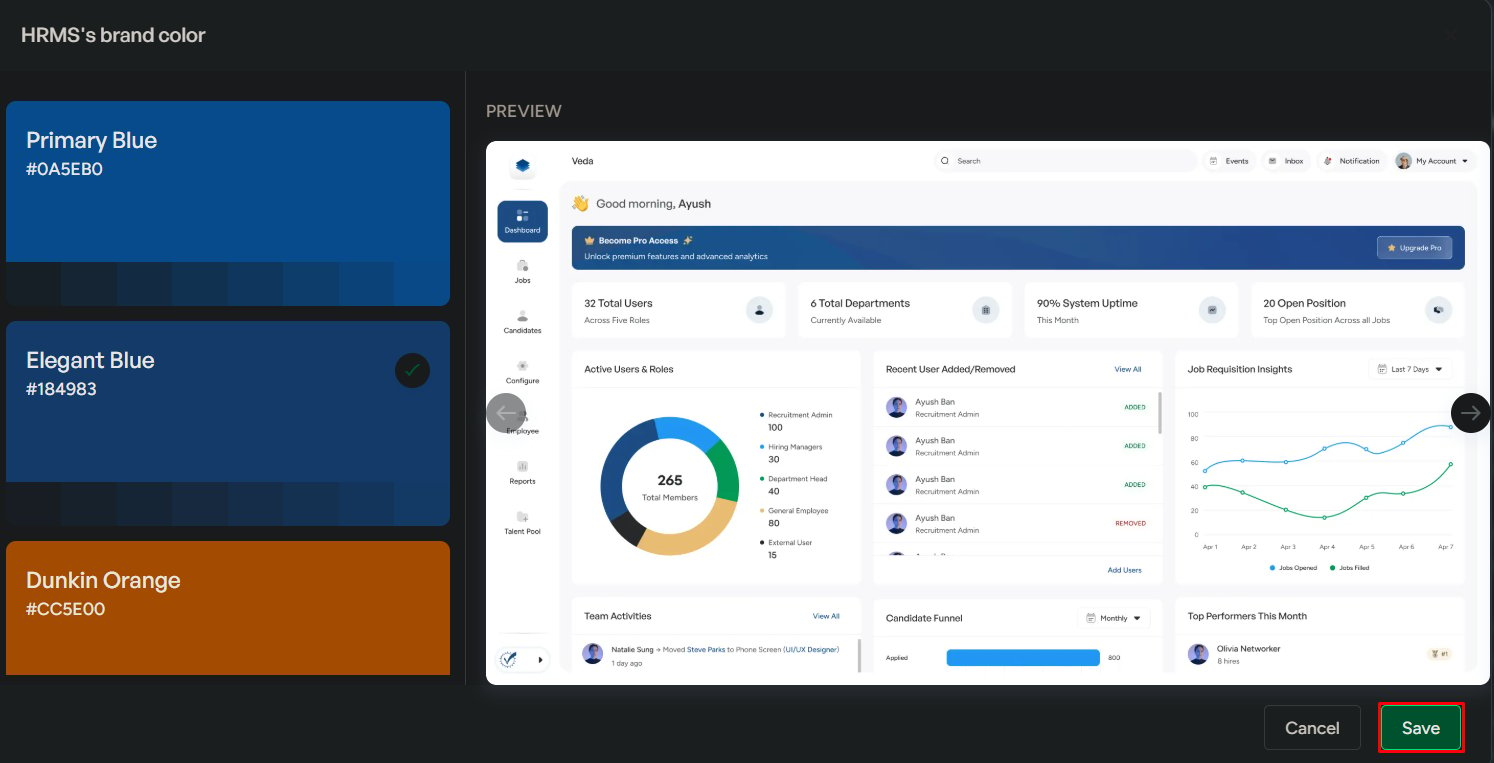
Open the color change dialog
Click Change next to a product.
2
Set a new color
Select or enter the new brand color, then click Save.