
.png?fit=max&auto=format&n=wMd7bxoi6I_Hm3IN&q=85&s=fe686234f9638b0fbfbc991ca32f7bc3)
This section is view-only. You can’t edit permissions from this page.
When to use this
Use this when you need to:- Verify what a role can do before assigning it
- Compare access between roles
- Check which users are assigned to a role
- Review module-specific permissions (e.g., Recruit roles)
Open role details
1
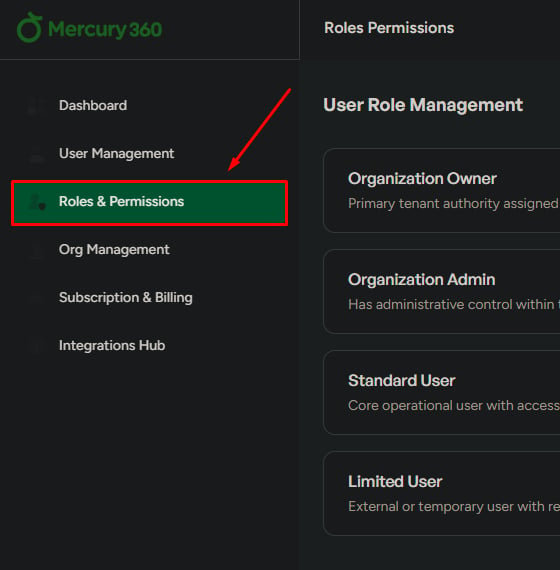
Go to Roles & Permissions
In the left navigation, click Roles & Permissions.
2
Select a role
Click any role (for example, Organization Owner, Admin, or Standard Limited).
3
Review the role details
A popup or new tab opens with the role details.
What you see in role details
Permissions
What actions the role is allowed to perform across the system.
Users in this role
Everyone currently assigned to the selected role.
Permissions
Use this to:- Understand the role’s access level
- Compare permissions with other roles
Users in this role
Use this to:- Confirm who has this access level
- Review how access is distributed across your team
Module permissions
System roles define overall access. Module permissions define what a role can do inside a specific product (for example, Mercury Recruit).1
Open Module Permissions
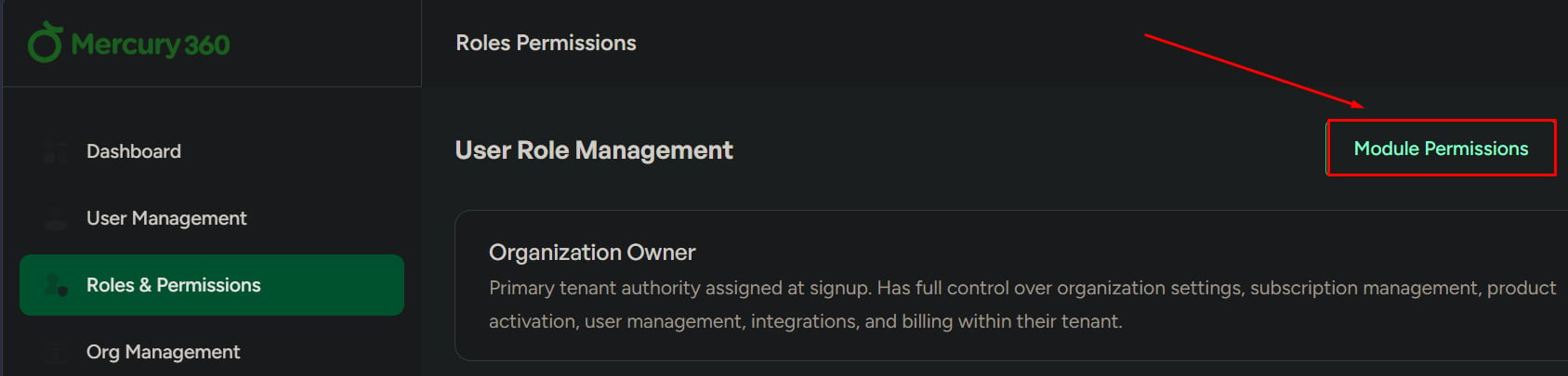
From Roles & Permissions, click Module Permissions.
2
Review module-specific roles
You’ll see module roles and their detailed permissions.
Important behavior
- System roles define overall access level
- Module roles define actions inside a product
- Changes to a module role apply to all users assigned to that role
What to be careful about
- Giving higher access than required increases risk
- Skipping module permissions review can cause workflow and access issues