.png?fit=max&auto=format&n=wMd7bxoi6I_Hm3IN&q=85&s=fe686234f9638b0fbfbc991ca32f7bc3)
Use the profile menu for quick actions (theme, logout). Use the profile page for account details and security settings.
From here, you can
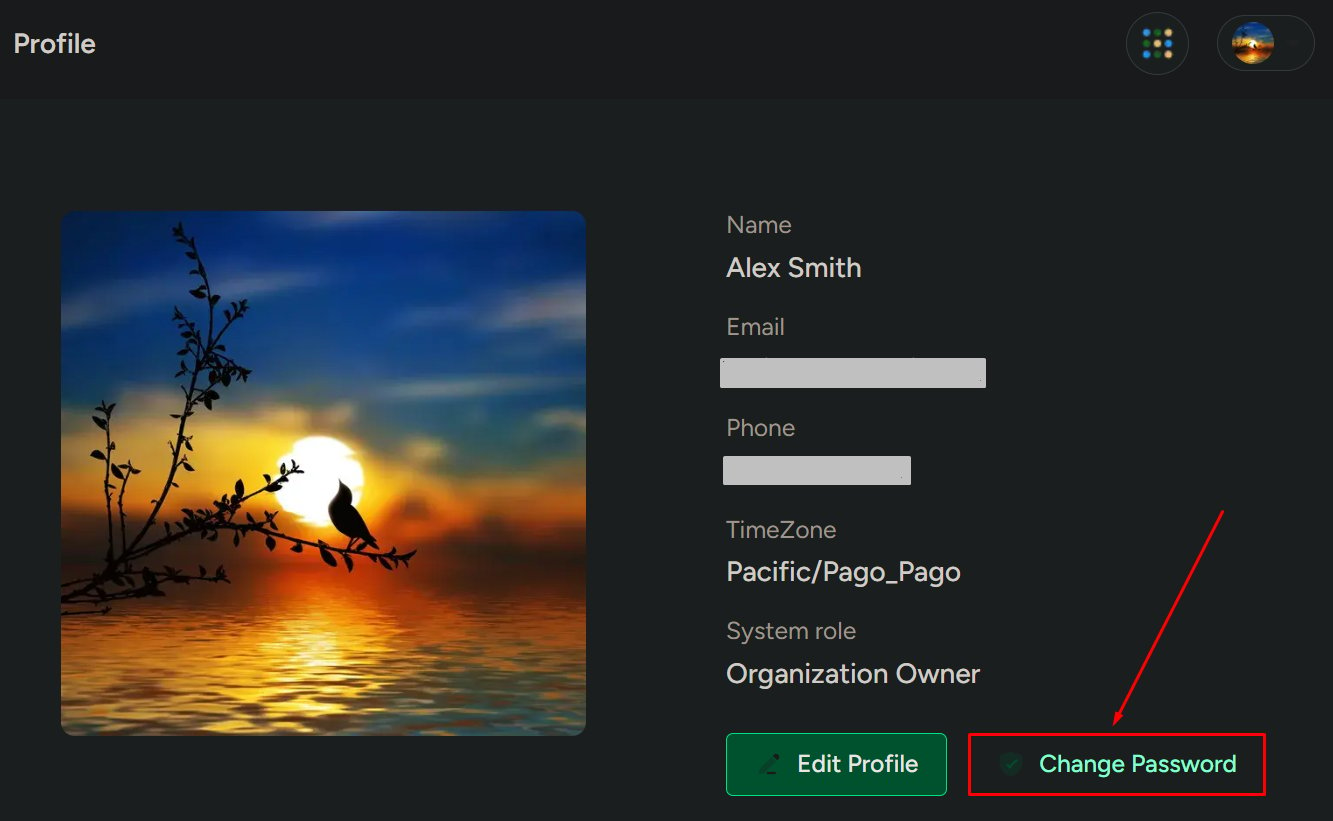
View profile
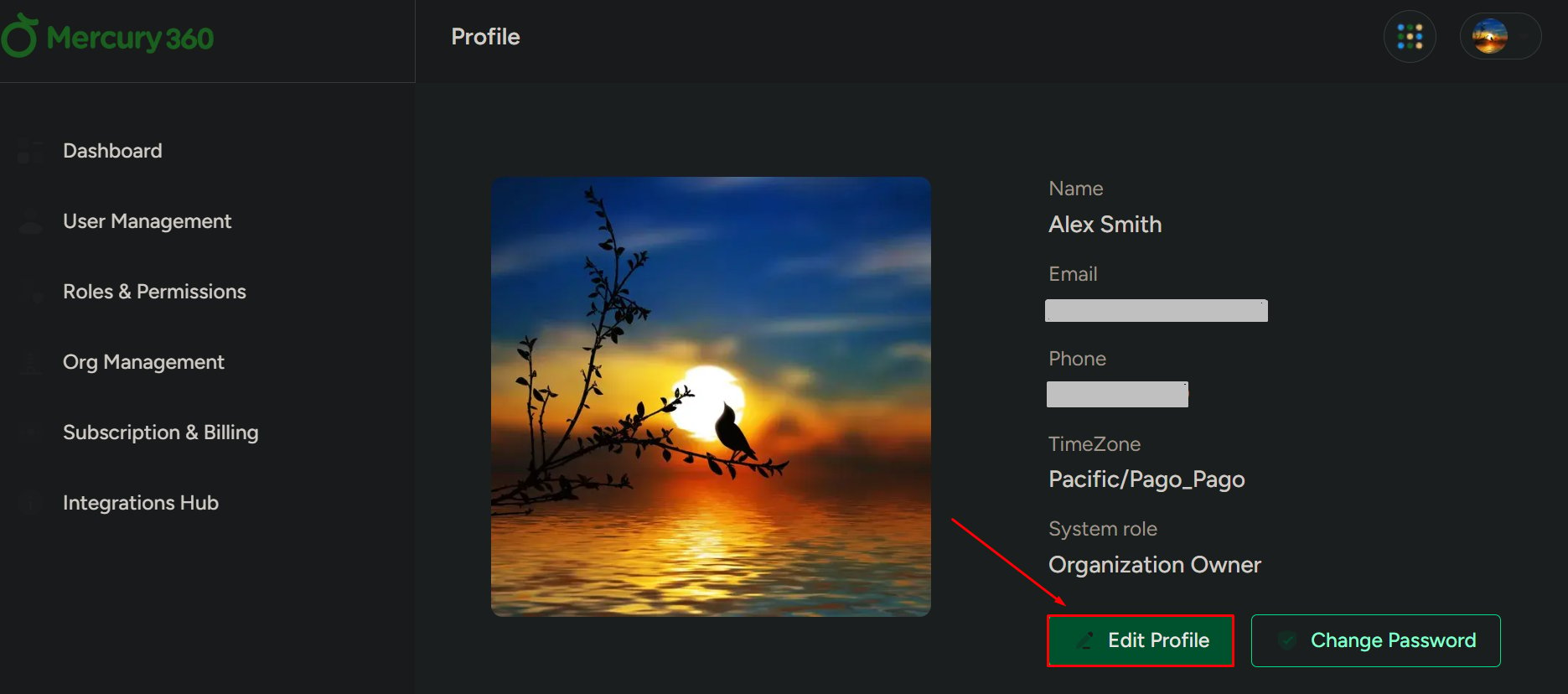
View your profile details (like email, time zone, and system role).
Update profile
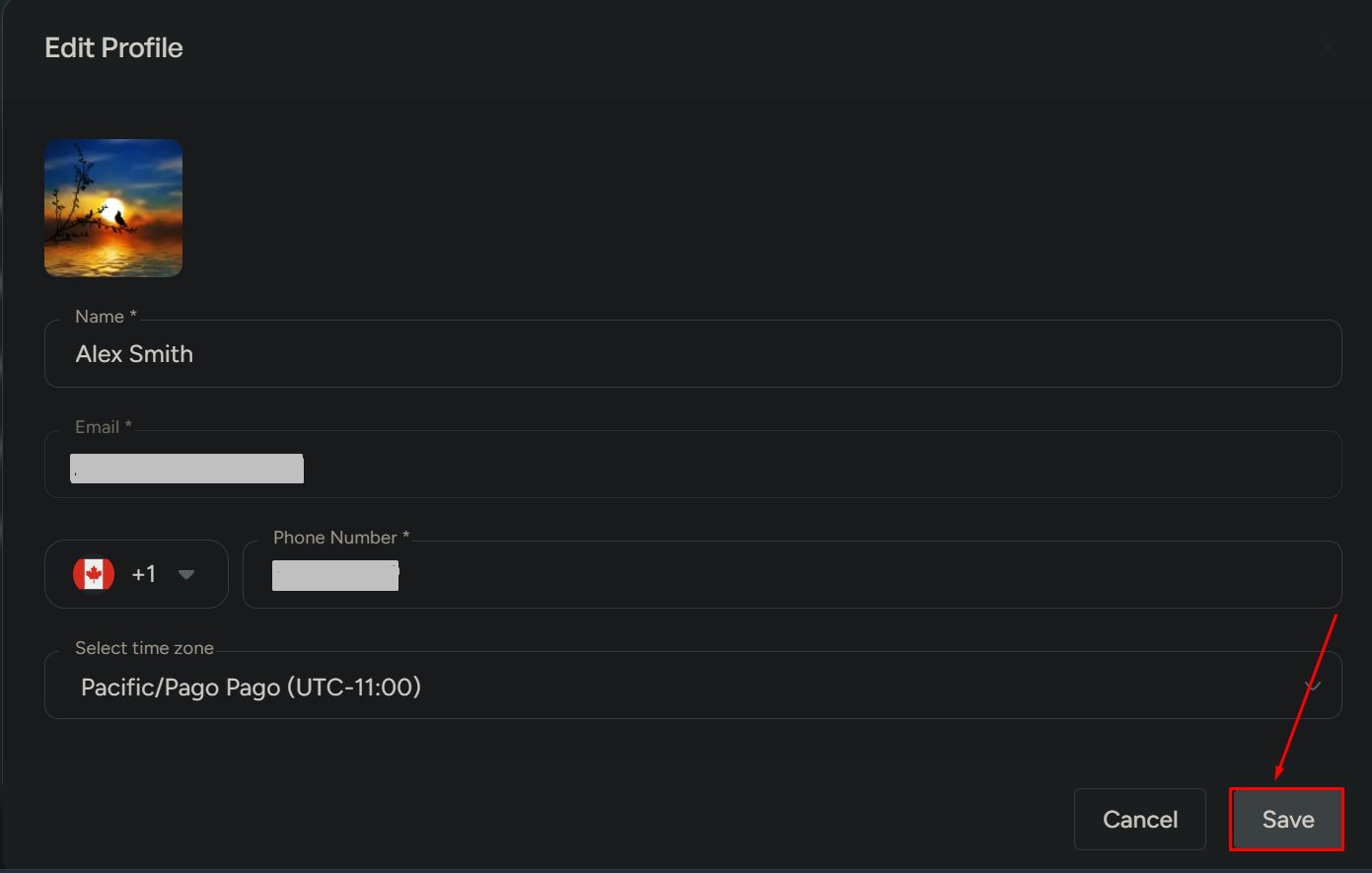
Edit personal information such as your profile image, number, and time zone.
Change password
Update your account password to keep your account secure.
Two-factor authentication (2FA)
Enable 2FA for extra security when signing in.
Sessions
Review active sessions and terminate logins on other devices if needed.
Appearance
Switch between light and dark theme appearance.
Logout
Sign out of the system when you’re done or switching accounts.
When to use this
Use this page when you need to:- Update your personal profile
- Change your password
- Enable or manage 2FA
- Review active login sessions
- Switch between light and dark theme
- Log out of the system
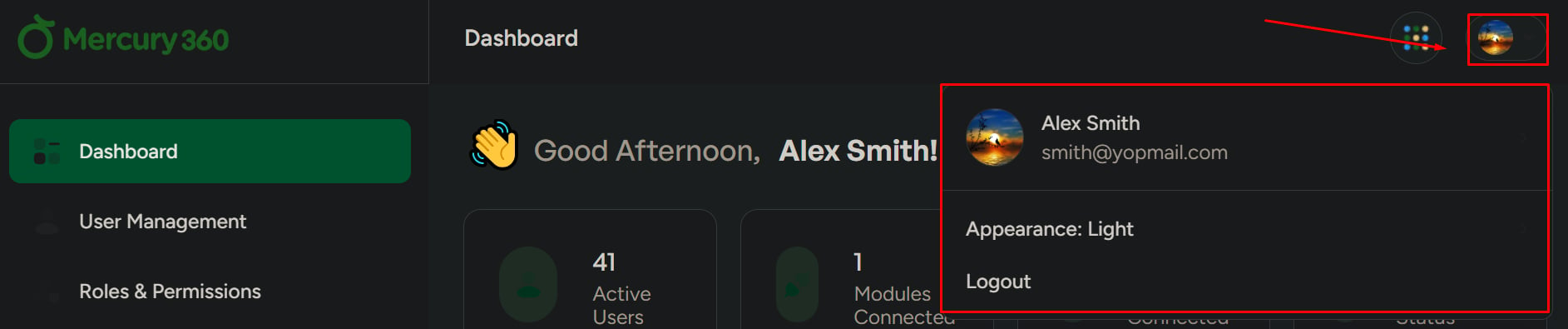
Open the profile menu
1
Open the menu
Go to the top navigation bar and click the profile icon.
2
Review available options
From the dropdown, you can access Profile, Appearance, and Logout.
Switch theme (Appearance)
Use Appearance to change the system theme.- Light mode
- Dark mode
Theme changes apply instantly across the system.
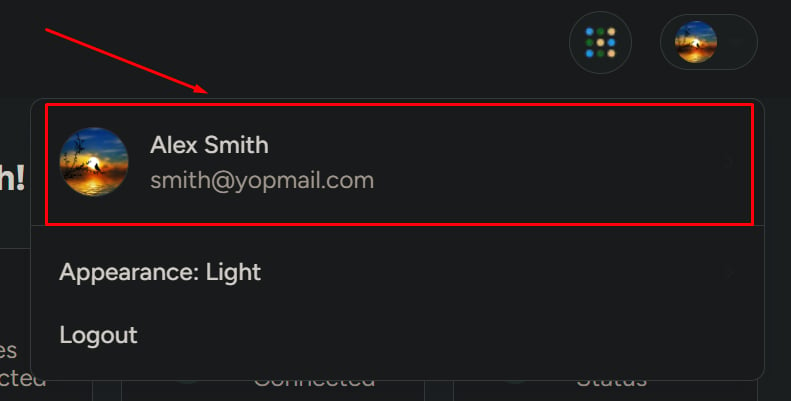
Open your profile page
1
Navigate to Profile
In the profile dropdown, click your name or select Profile.
Profile details
Your profile may include:- Profile image
- Name
- Phone number
- Time zone
- System role
Edit profile
You can update:- Profile image
- Phone number
- Time zone
1
Edit
Click Edit Profile.
2
Update details
Make your changes in the form.
3
Save
Click Save to apply updates.
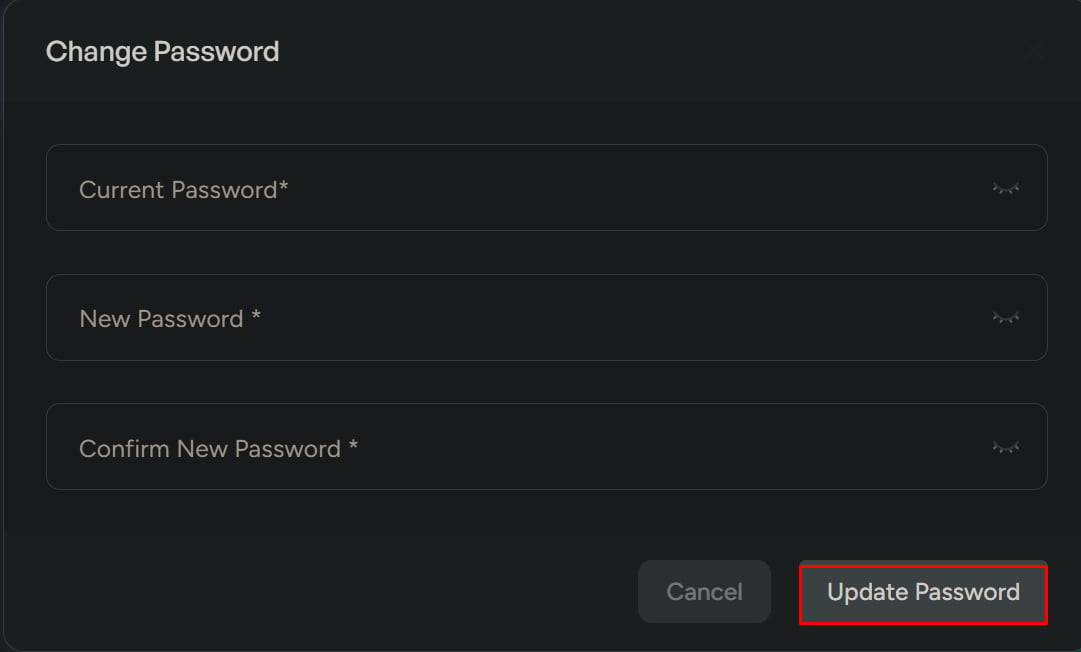
Change password
Use this to update your account password.1
Open Change Password
Click Change Password.
2
Enter your current password
Enter your current password to confirm your identity.
3
Set a new password
Enter a new password and confirm it.
4
Update password
Click Update Password to save the change.
Two-factor authentication (2FA)
Enable 2FA to add an extra layer of security during login.1
Start setup
Click Setup 2FA.
2
Connect an authenticator app
Follow the prompts to connect your authenticator app.
3
Verify
Enter the one-time verification code when prompted during login.
After setup, you’ll be required to enter a verification code each time you sign in.
Sessions
Use Sessions to view and manage active logins. You can see:- Active sessions
- Current session
Terminate sessions
Use this to log out from active devices.1
Terminate
Click Terminate Sessions.