
.png?fit=max&auto=format&n=wMd7bxoi6I_Hm3IN&q=85&s=fe686234f9638b0fbfbc991ca32f7bc3)
Users you add don’t get access immediately. They receive an email invitation and become Active only after accepting it.
What adding a user does
- Creates the user account in your organization
- Assigns a system role that defines overall access scope
- Grants module-level access (e.g., Recruit) with a specific module role
- Sends an email invitation to activate the account
How to add a user
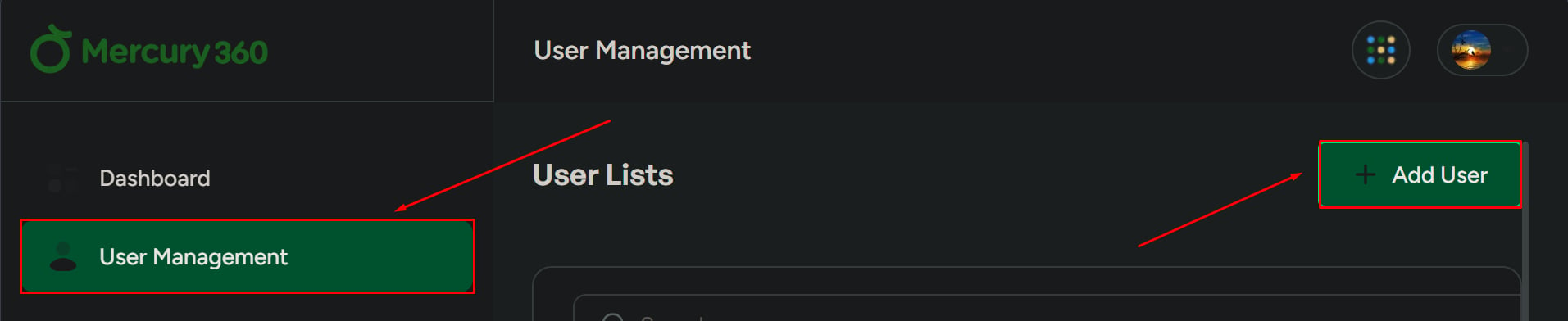
1
Open User Management
From the left navigation panel, click User Management.
2
Click Add User
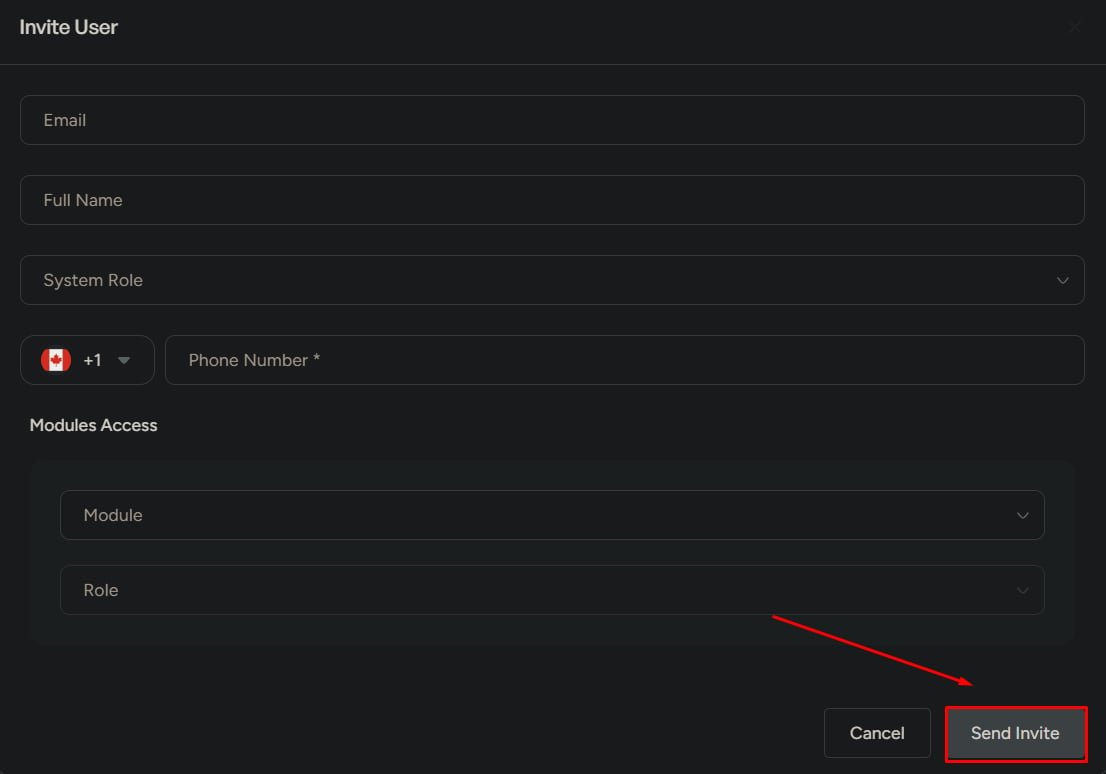
A pop-up form opens on the right side of the screen.
3
Enter user details
Fill in the basic profile information:
4
Choose a system role
Pick one role that defines the user’s overall scope. (See System roles below.)
5
Assign module access
Select the module (e.g., Recruit) and choose a module role. The module role determines what they can do inside that product.
6
Send the invitation
Click Send Invite. The user receives an email and must accept it to activate their account.
System roles
System roles control a user’s overall access level across your organization. Pick exactly one per user.Organization Admin
Full system access. Can manage users, billing, integrations, and organization settings.
Standard User
Limited access based on the modules and module roles assigned to them.
Limited User
Restricted access with minimal permissions — ideal for occasional collaborators.
Module roles
Module roles control what a user can do inside a specific product like Mercury Recruit. Common module roles include:Before you click Send Invite
Confirm:- The email address is correct
- The system role matches the user’s responsibility
- Module access is assigned correctly
- The user should receive the invite now
What happens after you invite
The user’s status follows a simple lifecycle:- Invited
- Active
- Inactive
The invitation has been sent, but the user hasn’t accepted yet. They can’t log in.
Next steps
Manage existing users
Search, filter, suspend, or reset passwords for users already in your workspace.
User Management overview
Review status types, available actions, and how the module fits into Mercury Accounts.