
.png?fit=max&auto=format&n=wMd7bxoi6I_Hm3IN&q=85&s=fe686234f9638b0fbfbc991ca32f7bc3)
Looking to define what a role can or can’t do? That lives in Roles & Permissions, not here. User Management lets you assign existing roles to users — it doesn’t let you create or edit the roles themselves.
What you can do here
View all users
Browse every person with access to your organization.
Check access status
See whether each user is active, invited, or inactive at a glance.
Search and filter
Find users by name, email, role, or status.
Quick actions
Suspend a user or send a password reset link in one click.
When to use User Management
Open this module when you need to:- Find a specific user in the system
- Check access or status for a teammate
- Verify module access for a user
- Suspend or restore a user’s access
- Reset a password on behalf of someone who’s locked out
How to access User Management
1
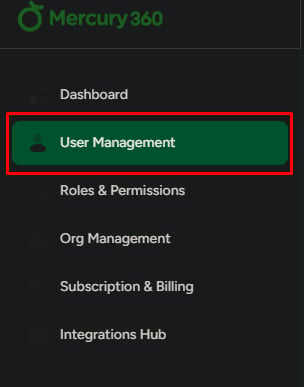
Open the left navigation
The left navigation panel is always visible from the dashboard.
2
Click User Management
The User Management page opens in the main view on the right.
The user list
The user list shows every user in your organization. Each row includes:
Use the search bar and filters at the top of the list to narrow results quickly.
Available actions
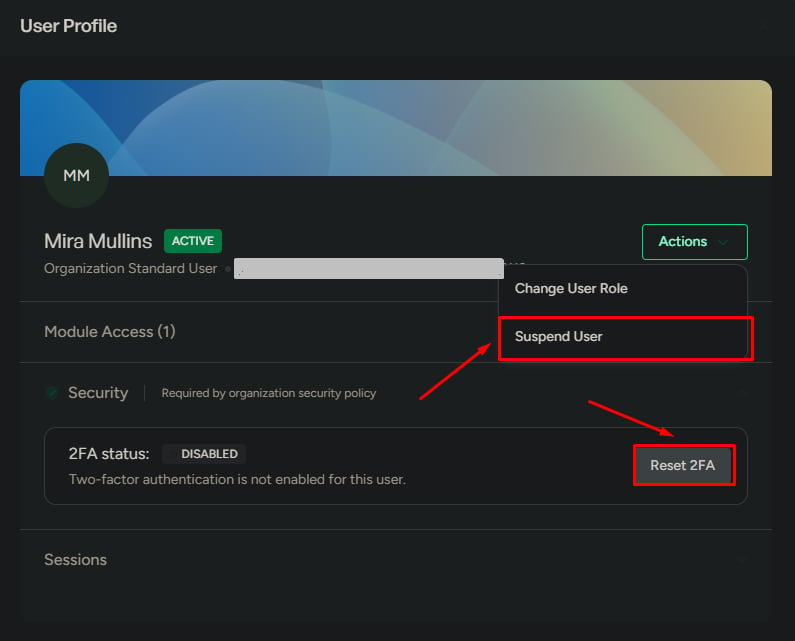
Two actions are available directly from the user list:Suspend user
Suspend user
Temporarily disables a user’s access to the system. They can’t log in or use any module until you restore access. Use this when someone leaves temporarily, changes roles, or you need to lock an account quickly.
Reset password
Reset password
Sends a password reset link to the user’s email. Use this when a teammate is locked out and can’t reset their own password from the login page.
User status types
Every user has one of three statuses. The status determines whether they can log in and use modules.- Active
- Invited
- Inactive
- User has accepted the invitation
- User can log in to the system
- User can access assigned modules
How status changes
Statuses transition based on invitations and admin actions:What to be careful about
Next steps
Add a new user
Invite teammates and assign system and module roles.
Manage existing users
Search, filter, and act on the users already in your workspace.