
.png?fit=max&auto=format&n=wMd7bxoi6I_Hm3IN&q=85&s=fe686234f9638b0fbfbc991ca32f7bc3)
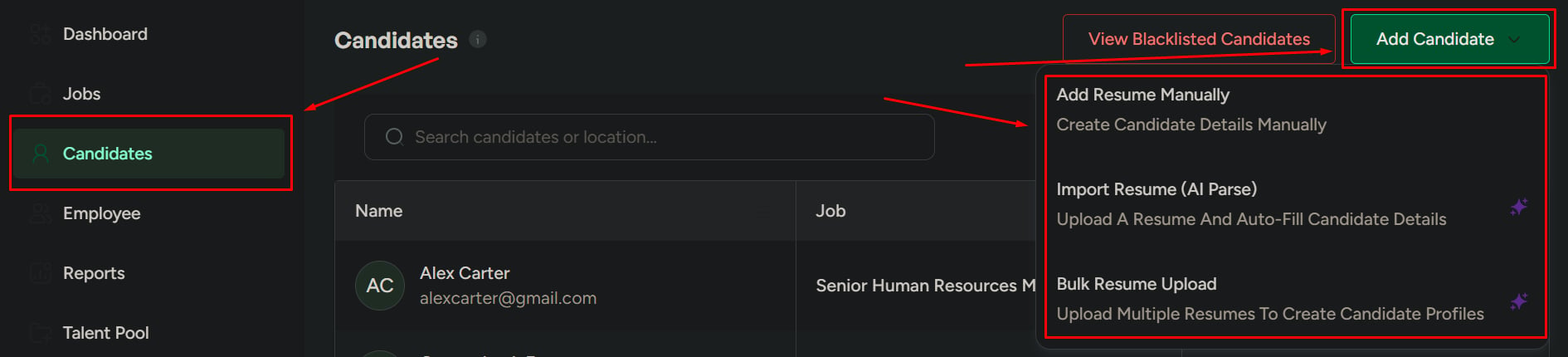
Manual entry
Full control over every field. Best for unclear resumes or referrals.
AI resume import
Upload one resume; Mercury auto-fills the fields. Best for most cases.
Bulk upload
Upload many resumes at once. Best for large hiring batches.
Method 1 — Add resume manually
Use this when you need full control over the candidate data.When to use it
- The resume is unclear or unstructured
- You need to verify or correct details
- You’re adding candidates from interviews, referrals, or notes
1
Click Add Candidate
From the Candidates page or a job’s pipeline.
2
Assign to a job
Use Assign to Jobs to attach the candidate to one or more jobs.
3
Enter the details
Required fields are marked. Optional fields enrich the profile and improve future matching.
4
Save the candidate
Click Add Candidate to save the candidate with the data you entered.
Method 2 — Import with AI (resume parse)
Use this when resumes are clear and you want speed.When to use it
- The resume is well-formatted
- You want to save time on data entry
- You’re handling multiple individual applications
1
Click Add Candidate
From the Candidates page or a job’s pipeline.
2
Assign to a job
Pick the job from Assign to Jobs.
3
Upload the resume
Upload a single resume file and click Next. Mercury parses it and auto-fills candidate fields.
4
Review and save
Review the parsed fields, correct anything wrong, then click Add Candidate.
Method 3 — Bulk upload
Use this when you need to add many candidates at once.When to use it
- Large hiring batches
- Job fairs, agency batches, or bulk submissions
- Speed matters more than per-candidate review
1
Click Add Candidate
From the Candidates page.
2
Select a job
All uploaded candidates will be linked to this job.
3
Upload multiple resumes
Drag in multiple files at once.
4
Upload candidates
Click Upload Candidates. All candidates are added and linked to the selected job.
Choose the right method
Related
Manage candidates
Find, filter, and organize candidates across jobs.
View candidate details
Open a profile and take action on a candidate.