
.png?fit=max&auto=format&n=wMd7bxoi6I_Hm3IN&q=85&s=fe686234f9638b0fbfbc991ca32f7bc3)
Whichever method you choose, always review the final job before publishing. AI-generated content is a starting point, not a finished product.
Start creating a job
From the Jobs page, click Create New Job and choose how you want to start.Options
- Start from scratch — Best when you already know the job details and want full control over every field.
- Generate with AI — Best when you want to move faster or need help drafting job content.

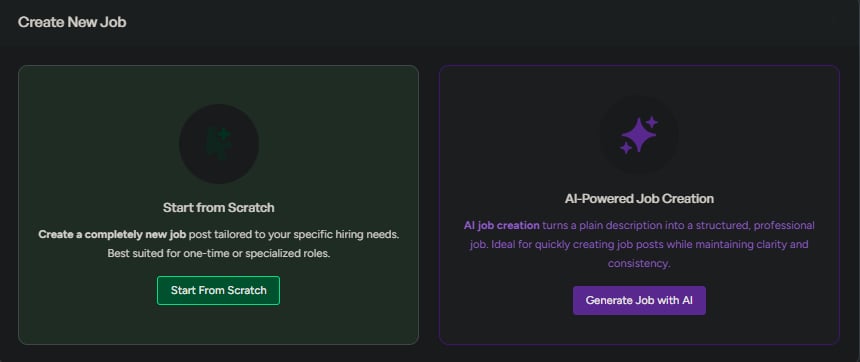
Method 1 — Start from scratch
Use this when you have a clear job spec ready and want full control over the job setup.1
Enter job details
Focus on the required fields first, then add supporting details.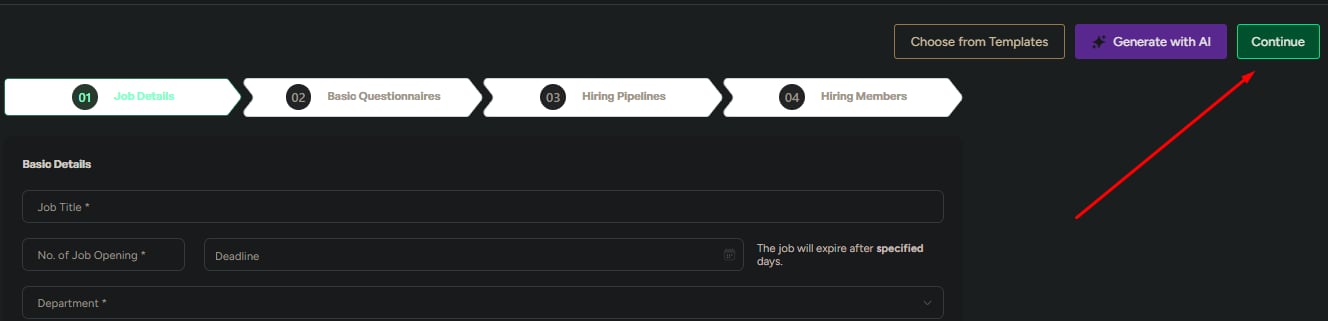
Click Continue.
2
Build the questionnaire
Select a template or add custom screening questions.Click Continue.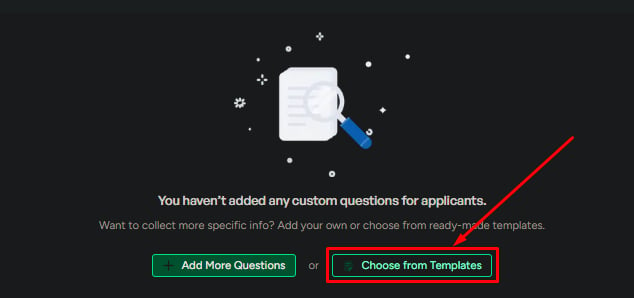
3
Configure the hiring pipeline
Load a pipeline template or build one from scratch. Add, edit, or remove stages to match your hiring process.Click Continue.
4
Add hiring members
Add workspace members who will work on this requisition.Click Continue.
5
Review and publish
Verify every detail before publishing.When ready, click Publish and choose: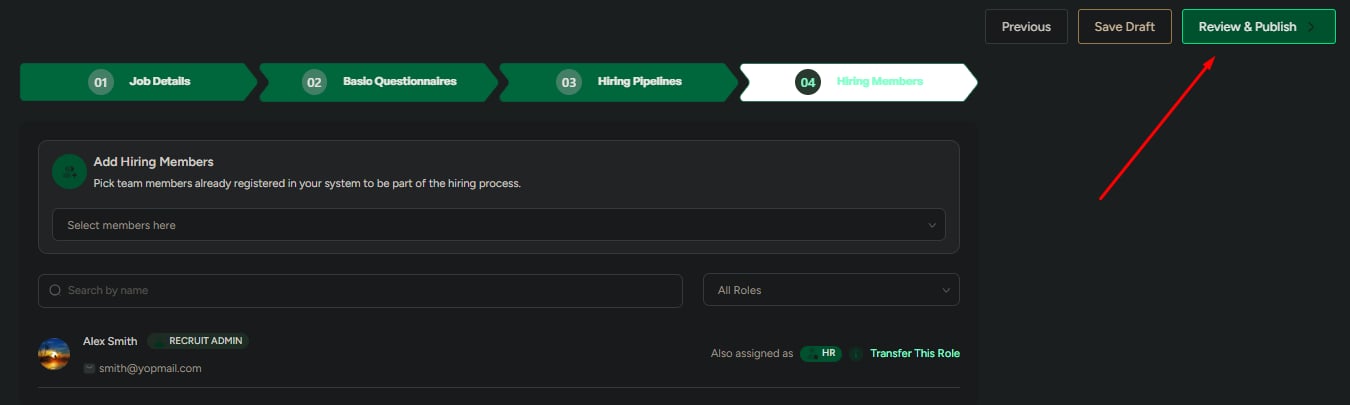
- Visibility — Global (anyone can apply) or Confidential (restricted)
- Timing — Immediate or Scheduled
Method 2 — Generate with AI
Use this when speed matters or when you need help turning a rough role idea into a usable draft.1
Enter a prompt
Describe the role, responsibilities, expectations, and ideal candidate in plain language. The more specific you are, the better the output.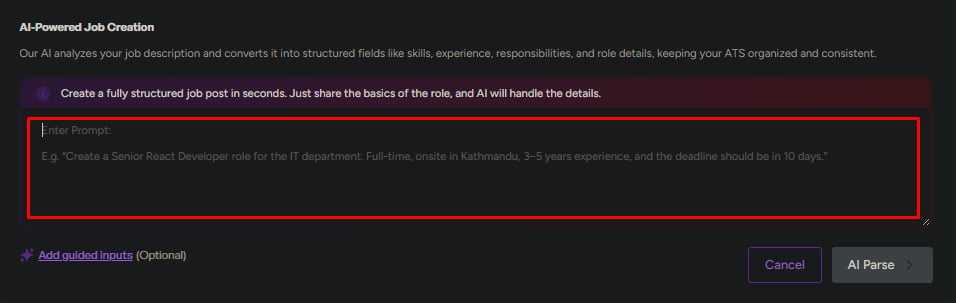
2
Add guided inputs (optional)
Add optional details to improve the generated draft:
- Company details
- Required skills
- Job benefits
3
Generate and review
Generate the job content, then review and edit every generated field before continuing.
4
Continue setup
Finish the same remaining steps as the manual flow:Questionnaire → Hiring pipeline → Hiring members → Review and publish
Choose the right method
- Start from scratch
- Generate with AI
Best when:
- You have an existing job description ready to paste
- The role is highly specialized
- You need exact wording, compliance language, or internal approval text
What to review before publishing
Before publishing, confirm:- Job title and number of openings are correct
- Department, location, and work type are accurate
- Job description matches the role requirements
- Questionnaire questions are relevant
- Pipeline stages match your hiring process
- Hiring members are assigned correctly
- Visibility and publish timing are correct
If anything is unclear, save the job as a draft and review it with the hiring team before publishing.
Related
Manage jobs
Find, filter, and switch views across all your jobs.
View job details & pipeline
Track candidates and pipeline progress for a specific job.