
.png?fit=max&auto=format&n=wMd7bxoi6I_Hm3IN&q=85&s=fe686234f9638b0fbfbc991ca32f7bc3)
When to use this page
Use this page when you need to:- Find a specific candidate
- Review candidate progress
- Compare multiple candidates
- Separate active candidates from restricted candidates
- Open a candidate profile for detailed actions
Open Candidates
1
Open Candidates
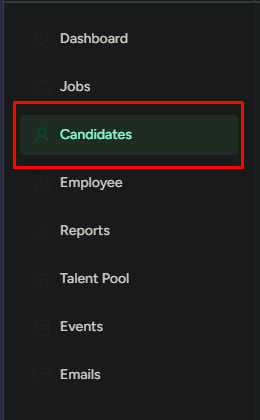
Click Candidates from the left navigation menu.
2
Review the candidate list
A list of candidates appears with key details for quick scanning and comparison.
Candidate information
Each candidate row shows key details.
Use this information to quickly scan, compare, and prioritize candidates.
Candidate status
- Blacklisted
- Inactive
- Disqualified view
Restricted candidates who cannot be considered for hiring while the blacklist is active.
Search candidates
Use search when you know the candidate’s name.1
Search by name
Type the candidate’s name in the search bar.
2
Review results
Results update automatically as you type.
Filter candidates
Use filters when the candidate list is large.1
Open filters
Click Filter.
2
Select criteria
Choose the criteria that match what you’re looking for.

Filter by status
Control which candidates are visible.- Toggle Show Disqualified Candidates to show or hide restricted candidates
- Open Blacklisted Candidates to view only restricted candidates
Status filters help separate active candidates from restricted profiles while keeping restricted records available for review.

Remove a candidate from the blacklist
Use this when a candidate should be allowed back into hiring.1
Open Blacklisted Candidates
Go to Blacklisted Candidates from the candidate status view.
2
Remove from blacklist
Select the candidate and remove them from the blacklist.
3
Review the result
The candidate becomes active again, but they are not automatically prioritized or added back into hiring decisions.

Open a candidate profile
1
Select a candidate
Click any candidate from the list.
2
Review profile details
The full candidate profile opens with detailed information and available actions.