
.png?fit=max&auto=format&n=wMd7bxoi6I_Hm3IN&q=85&s=fe686234f9638b0fbfbc991ca32f7bc3)
Reports are for decisions, not just data. Skim quickly, then drill into the section that highlights a problem.
When to use Reports
Use Reports when you need to:- Understand hiring progress
- Identify delays or bottlenecks
- Compare performance across jobs, candidates, or recruiters
Open Reports
Click Reports in the left menu. The default view opens Job Reports—a high-level view of hiring performance.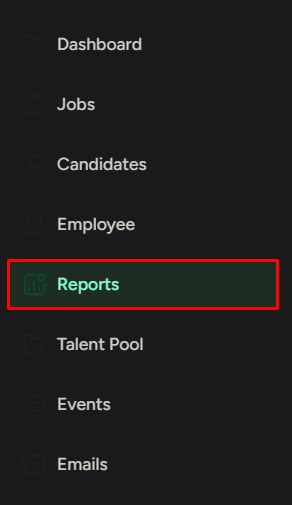
Report sections
Reports are split into three tabs.Jobs
Job performance, hiring progress, and department-level hiring.
Candidates
Candidate flow, drop-offs, and conversion from application to hire.
Recruiter
Recruiter performance, efficiency, and contribution to hires.
When to open each tab
Date range
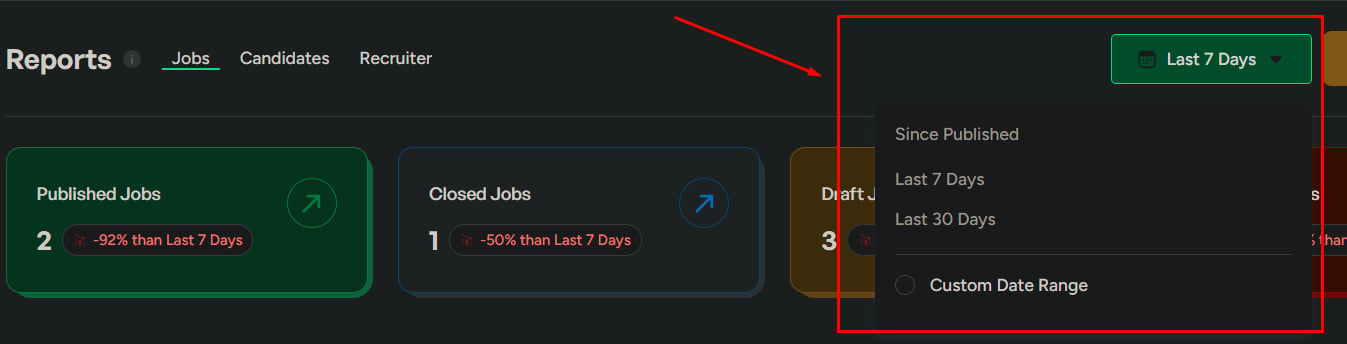
Every report respects a date range. Pick the window that matches your question.- Last 7 days
- Last 30 days
- Custom range
Short-term tracking and recent activity.
Export reports
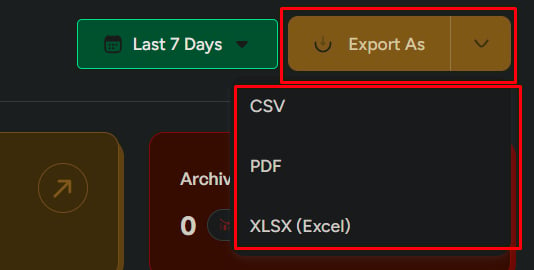
When you need to share or analyze data outside the system:- Export as CSV, PDF, or XLSX
- Export a specific report, or export all sections
- Export only what you need to avoid noise
Related
Jobs Reports
Drill into job performance and hiring distribution.
Candidate Reports
Find at what stage candidates drop off in the pipeline.
Recruiter Reports
Measure recruiter contribution and efficiency.