
.png?fit=max&auto=format&n=wMd7bxoi6I_Hm3IN&q=85&s=fe686234f9638b0fbfbc991ca32f7bc3)
What you can manage here
This page includes two types of updates:- Notifications: alerts and updates that may require attention
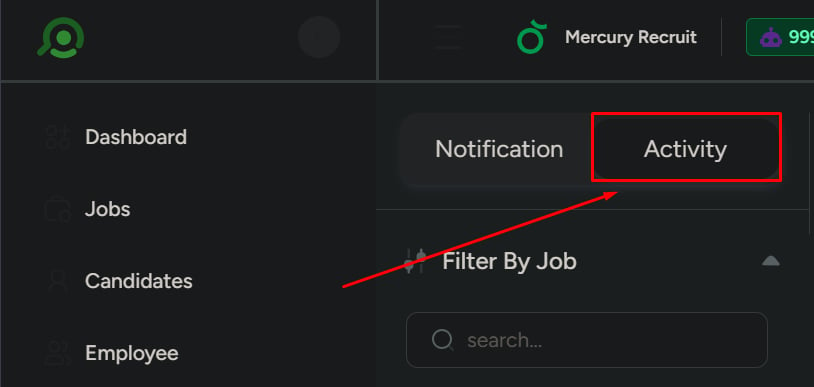
- Activity: system actions and changes (audit-style history)
Notifications = what needs attention
Activity = what already happened
Activity = what already happened
When to use this
Use this when you need to:- Find a specific notification
- Filter updates by job, candidate, employee, or date range
- Track system activity over time
- Separate read and unread notifications
Open the Notifications page
1
Click the bell icon in the top bar.
2
Click View All.
Page structure
The page has two main areas:Left panel
The left panel controls what you’re viewing and how results are filtered. It includes:- Tabs:
- Notifications
- Activity
- Filters:
- Job
- Candidate
- Employee
- Date range
Right panel
The right panel displays results based on:- The selected tab (Notifications or Activity)
- Any filters applied in the left panel
Notifications tab
Use this tab to manage system notifications.View options
Filter by notification status:- All
- Read
- Unread

Mark all as read
Use Mark all as read to clear unread items.After marking all as read, notifications will move to the Read state and the unread list may be empty.

Activity tab
Use this tab to track system actions and changes, such as:- Job updates
- Candidate movements between stages
- Other updates across the system
Use Activity to understand what happened in the system (history), not just what needs attention.
Use filters
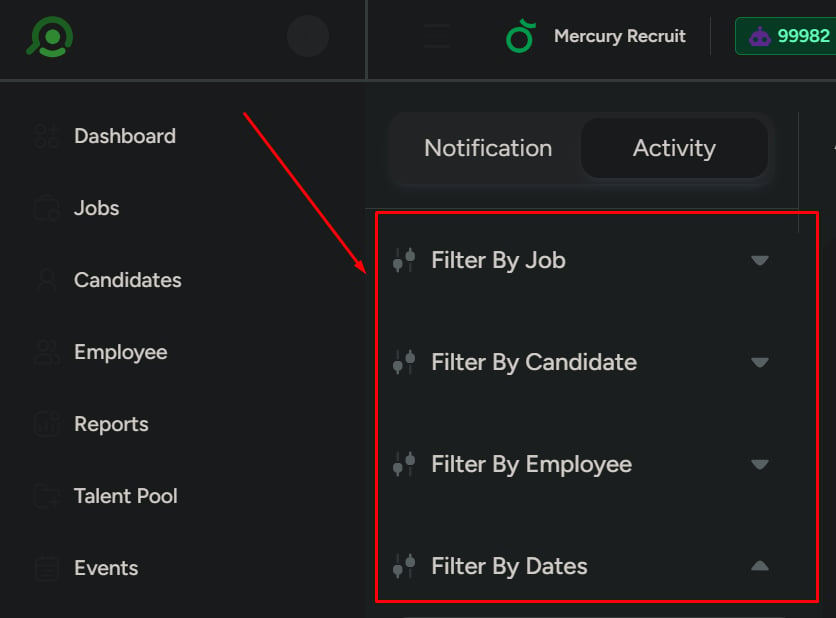
Filters help narrow down results when the list is large or when you’re looking for something specific. You can filter by:- Job
- Candidate
- Employee
- Date range
What to be careful about
- Not using filters can lead to cluttered views and slower searching
- Ignoring unread notifications can result in missed actions
- Confusing Activity with Notifications can lead to the wrong follow-up steps