.png?fit=max&auto=format&n=wMd7bxoi6I_Hm3IN&q=85&s=fe686234f9638b0fbfbc991ca32f7bc3)
When to use this
Use this when you need to:- Check upcoming events
- Review past events
- Find specific events
- Take action on an existing event
Open Events
1
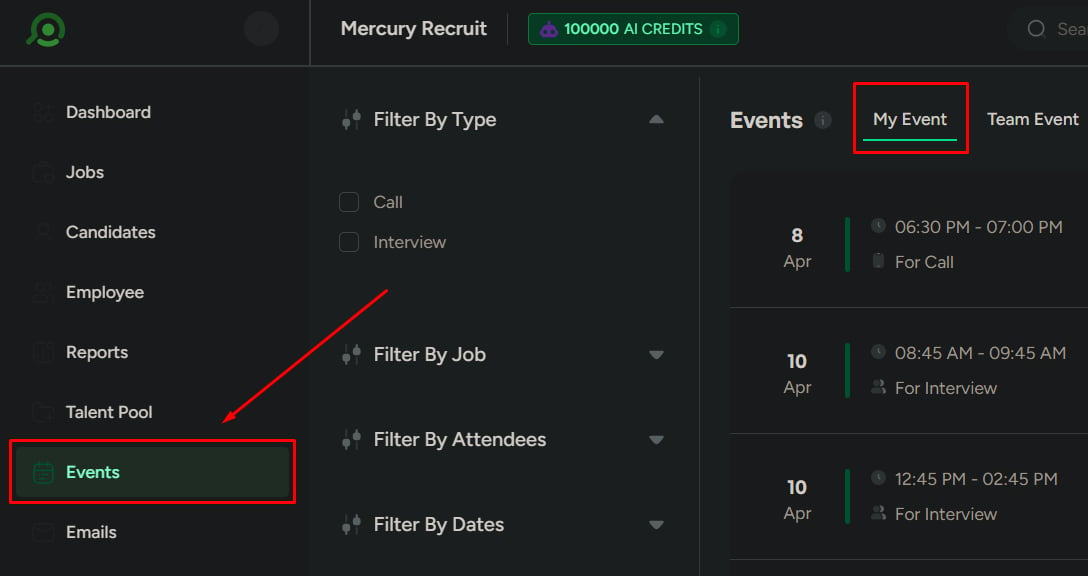
From the left menu, click Events.
2
You’ll land on My Events by default.
Event views
There are two tabs:My Events
Shows:- Events you created
- Events you’re assigned to
Team Events
Shows:- Events related to jobs you’re assigned to
- Events where you’re not an attendee
Event list
Each event shows:- Date and time
- Event type (Call or Interview)
- Short description
- Organizer
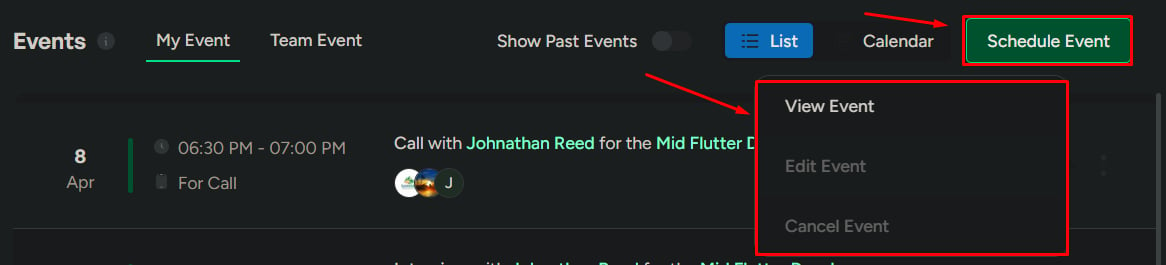
- Actions (View, Edit, Cancel)
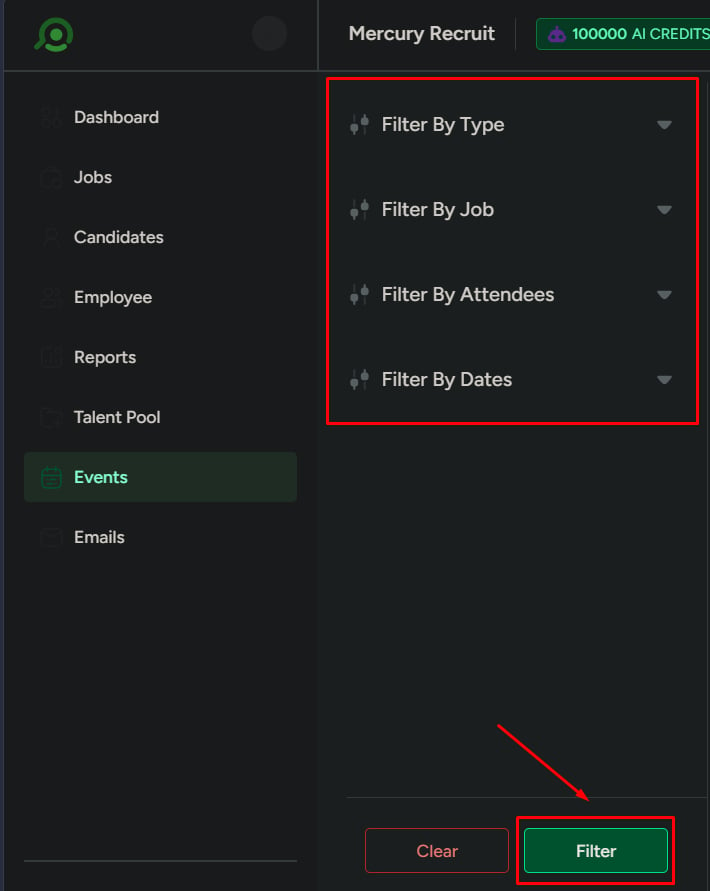
Filter events
Use this when the list becomes large. Available filters include:- Type (Call or Interview)
- Job
- Attendees
- Date range (From / To)
Search events
Use search when you know what you’re looking for.- Search using keywords such as candidate name, job, or event context

Show past events
1
Toggle Show Past Events.
- Review completed events
- Track past interactions

Event actions
View event
Use View to see full event details.Edit event
Use Edit when event details need to be updated.Cancel event
Use Cancel when the event is no longer needed.Schedule an event
Use this when you want to create a new event.1
Click Schedule Event.
2
You’ll be taken to the event creation flow.