
.png?fit=max&auto=format&n=wMd7bxoi6I_Hm3IN&q=85&s=fe686234f9638b0fbfbc991ca32f7bc3)
This page is for creating employee records, not for tracking onboarding or job applications. For onboarding progress, see Onboarding.
When to add an employee
Use this page when:- A candidate has been hired and needs an employee record
- You want to create a profile before onboarding starts
- You need to save employee details for the HR department
Start adding an employee
1
Open People Directory
Go to Employees → People Directory.
2
Click Add Employee
Click Add Employee to start the creation flow.

Employee creation flow
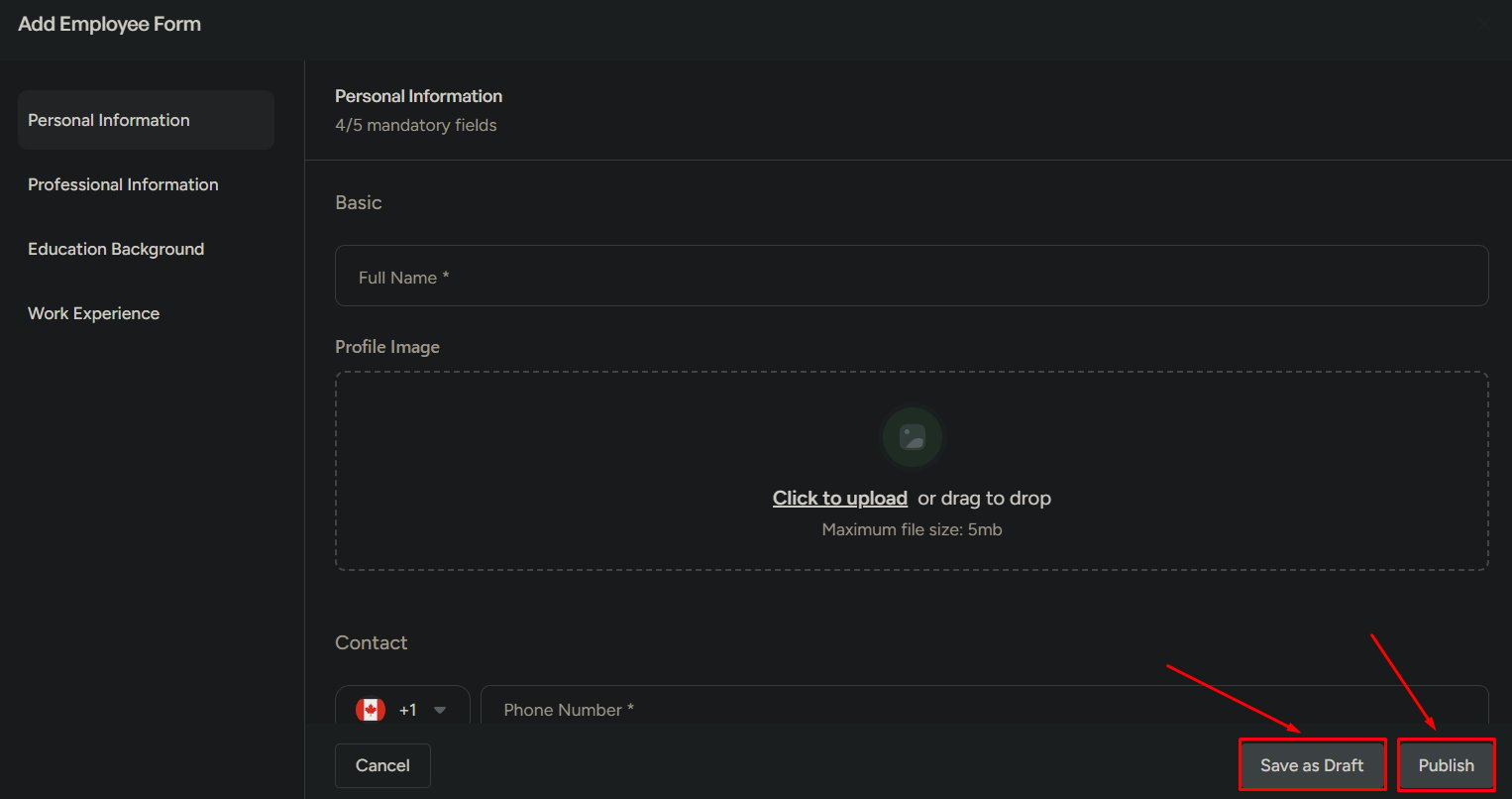
Step 1 — Personal details
Add identity and contact information which is used for basic employee records.
Step 2 — Professional details
Add work-related information that connects the employee to the organization.
Step 1 — Personal details
Use this step to identify and contact the employee. You can add:- Full name
- Profile image
- Contact number
- Personal email
- Address
Personal details are used for basic identification and communication.
Step 2 — Professional details
Use this step to define the employee’s work setup. You can add:- Work email
- Department
- Resume
Professional details connect the employee to their role and department in the organization.
Save options
- Save as draft
- Publish employee
Use this when details are incomplete.
- Employee is saved in the system
- Employee does not appear as active
- You can edit and complete details later
When not to publish yet
Related
Manage employees
Find and update employees in the People Directory.
Onboarding
Track new joiners through onboarding stages.