
.png?fit=max&auto=format&n=wMd7bxoi6I_Hm3IN&q=85&s=fe686234f9638b0fbfbc991ca32f7bc3)
When to use this
Use this when:- You want to schedule an interview for a candidate
- You want to arrange a call with a candidate
- You need to assign attendees and timing for hiring discussions
Use this only for planned candidate interactions (calls and interviews).
Start scheduling an event
1
From the Events page, click Schedule Event.
2
Follow the guided step-by-step flow.

Step 1: Select context
Select both:- Job
- Candidate
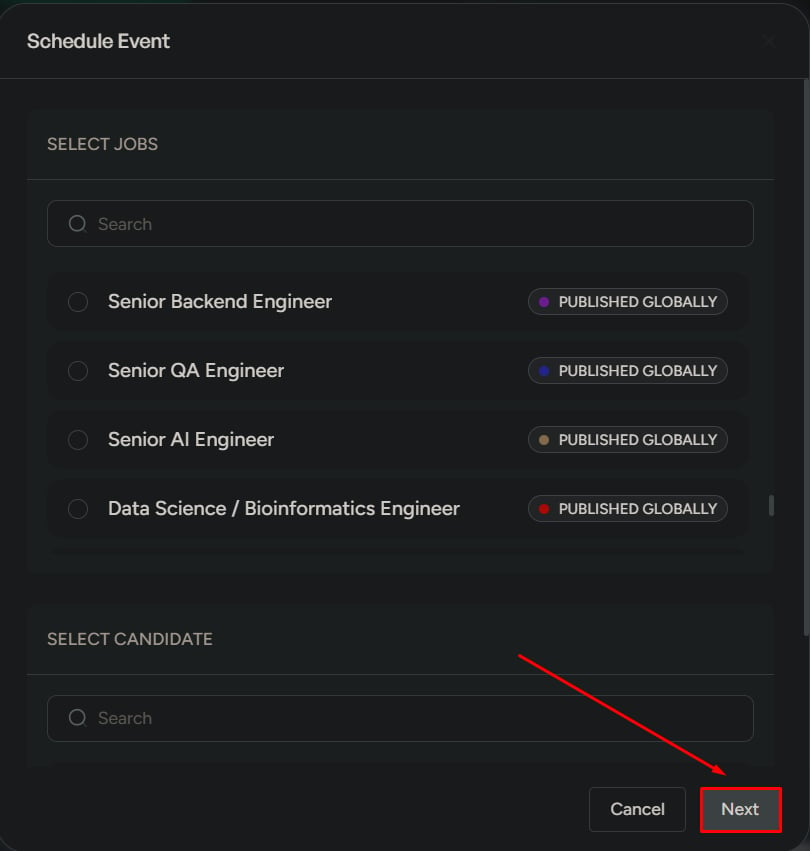
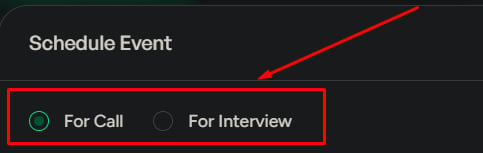
Step 2: Choose event type
Select one:- Call
- Interview
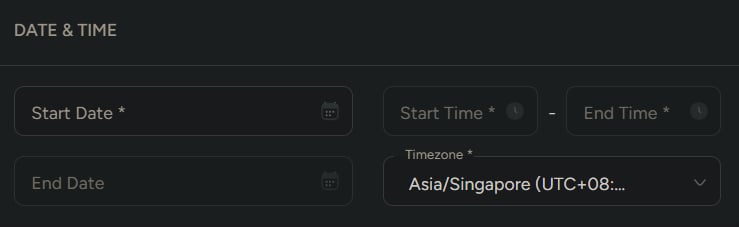
Step 3: Set date and time
Add:- Start date and end date
- Start time and end time
- Timezone
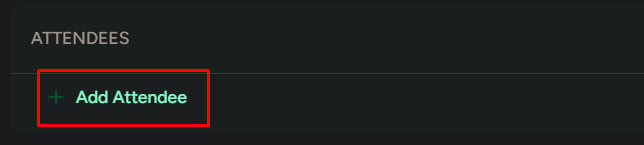
Step 4: Add attendees
Add everyone who should attend the event, such as:- Recruiters
- Interviewers
- HR members
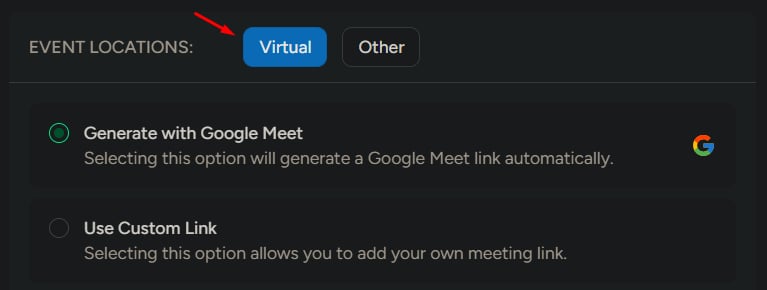
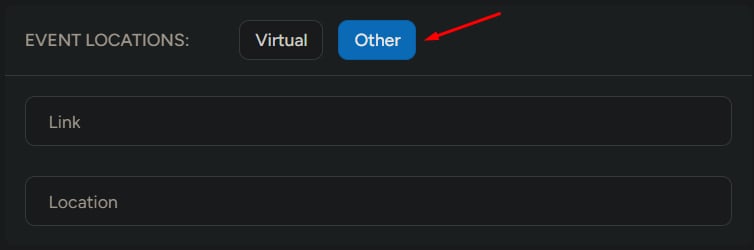
Step 5: Set location
Choose one:Virtual
- Add a meeting link (required)
Other
- Add a location (required)
- Add a meeting link (optional)
Step 6: Event details
Details depend on the event type:- Call: uses the default call template
- Interview: uses the default interview template
Templates help keep communication consistent across interviews and calls.
Step 7: Attach files (optional)
Upload relevant files (max 5 MB), such as:- Resumes
- Notes
- Interview materials
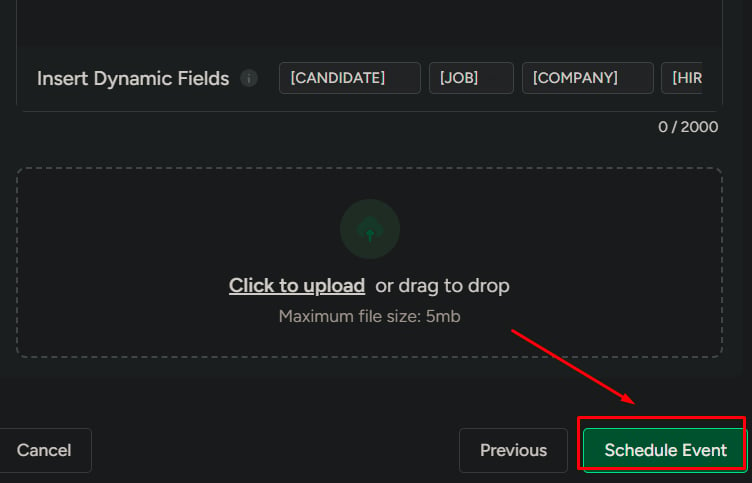
Step 8: Schedule event
1
Click Schedule Event.
What happens after scheduling
- The event appears in My Events
- Attendees can view event details
- The event can be edited only by the creator
- The event can be canceled only by the creator
What to be careful about
- Selecting the wrong job or candidate can be difficult to fix later
- Incorrect time or timezone can lead to missed interviews
- Missing attendees can cause coordination and feedback gaps