
.png?fit=max&auto=format&n=wMd7bxoi6I_Hm3IN&q=85&s=fe686234f9638b0fbfbc991ca32f7bc3)
The dashboard is your daily starting point. Use it for quick visibility, then open Jobs, Candidates, or Reports for detailed work.
When to use the dashboard
Open the dashboard when you need to:- Check overall hiring status
- Monitor team activity
- Track candidate progress
- Review system usage and performance
- Spot hiring bottlenecks before they slow down the team
Open the dashboard
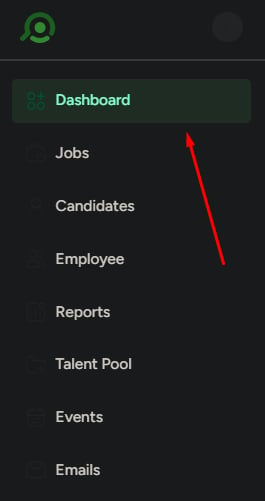
The dashboard opens by default when you log in. You can also open it anytime from the left navigation:1
Open Dashboard
Click Dashboard from the left navigation menu.
2
Review the summary
Start with the top cards, then scan the activity and funnel sections for changes.
What you can monitor
Hiring status
Track open positions, jobs opened, jobs filled, and overall hiring progress.
Team activity
Review recent actions and see whether your team is actively moving work forward.
Candidate movement
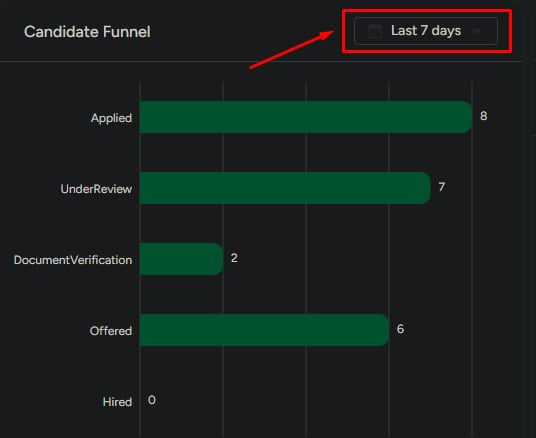
Monitor how candidates move through funnel stages and where drop-offs happen.
Workspace health
Check high-level system usage, users, departments, and uptime.
Dashboard sections
The dashboard is split into sections, each focused on a different signal.Summary cards
The top cards give you quick scale and activity metrics.Active Users & Roles
Shows how users are distributed across recruiting roles, such as:- Recruit Admin
- Recruitment Manager
- Recruiter
- Interviewer
- External Collaborator
Recent user activity
Shows the most recent additions or removals in your workspace. Click View All to open the full audit trail.Job Requisition Insights
Tracks hiring activity with two key metrics:- Jobs opened
- Jobs filled
- Last 7 days
- Last 30 days
- Custom range
Use this for short-term tracking, weekly changes, and immediate hiring momentum.
Team Activities
Lists recent actions taken by team members. Use View All to open the complete log. This helps you confirm whether teammates are actively moving candidates and jobs forward.Candidate Funnel
Shows candidate movement across hiring stages.Example funnel
Applied → Under Review → Document Verification → Offered → Hired
Top Performers
Highlights top contributors for the selected period. If no qualifying activity exists, the section may be empty. That usually means there was no matching activity in the selected date range.Customize the dashboard
Click Edit at the top of the page to adjust the layout and reorder sections to match how your team works.What to be careful about
What the dashboard is not for
Use the dashboard for visibility, not deep work
- Detailed reporting — use Reports for deeper analysis.
- Managing candidates — use the Candidates module.
- Configuring jobs — use the Jobs module.
Next steps
Manage jobs
Find, filter, and act on jobs from one screen.
Manage candidates
Review and organize candidates across all jobs.