
.png?fit=max&auto=format&n=wMd7bxoi6I_Hm3IN&q=85&s=fe686234f9638b0fbfbc991ca32f7bc3)
When to use this page
Use the job details page when you need to:- Review candidates for a specific role
- See where candidates are in the hiring pipeline
- Find candidates by name or filter by criteria
- Compare candidate progress across stages
- Add new candidates directly to the job
- Follow a role you’re actively working on
Open a job
1
Open Jobs
Click Jobs from the left navigation.
2
Open the job details page
Click the job name, or click View Job Details from the job row.

What you can do here
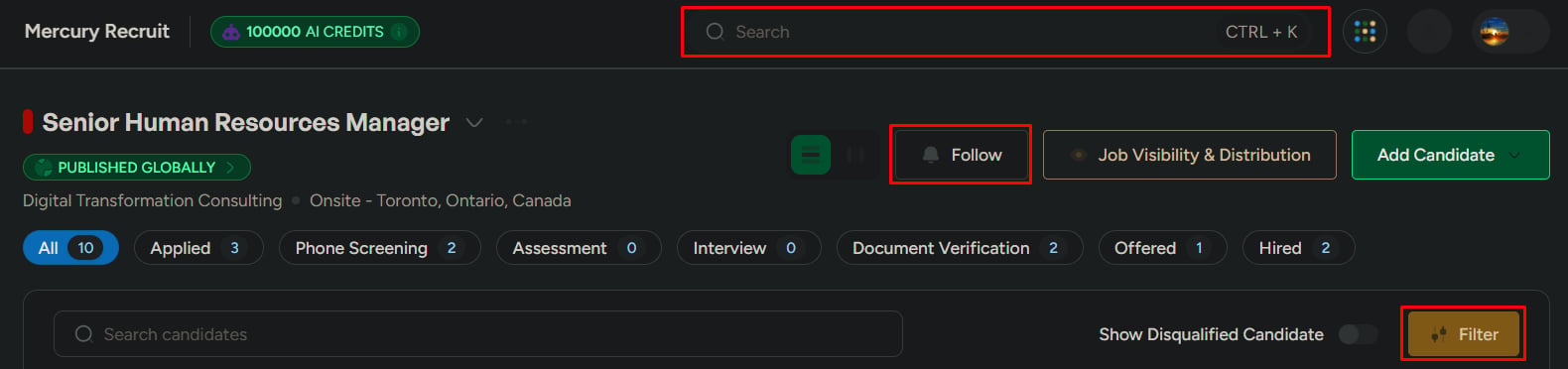
Track pipeline progress
View candidates by hiring stage and identify where work is moving or stuck.
Switch views
Use List view for detailed comparison or Kanban view for stage-based review.
Search and filter
Find candidates quickly by name, source, score range, applied date, and more.
Add candidates
Add candidates directly to the job using manual entry, AI resume import, or bulk upload.
Understand the pipeline
Candidates are grouped by hiring stages. Each stage represents a step in the hiring process. A typical pipeline may look like this:Typical pipeline: Applied → Phone Screening → Assessment → Interview → Document Verification → Offered → Hired
Pipeline stages are configured per job. Your stages may look different depending on the pipeline template selected when the job was created.
View candidates by stage
Click a stage tab to view candidates currently in that stage. Use stage tabs to:- Review candidates waiting at a specific step
- Spot bottlenecks in the hiring flow
- Compare how candidates are progressing
- Prioritize follow-up actions

Switch pipeline view
- List view
- Kanban view
Use List view when you need detailed comparison.Best for:
- Reviewing candidate scores
- Sorting rows by key fields
- Comparing candidate details side by side

Search and filter candidates
Use search and filters when the pipeline has many candidates.1
Search by name
Use the search bar at the top of the pipeline to find a candidate by name.
2
Apply filters
Click Filter to narrow candidates by source, score range, applied date, and other available criteria.
3
Review the filtered list
Use the results to focus on the candidates that match your current hiring question.
Follow a job
Click Follow to keep the role easy to access from your followed jobs list. Use this when:- You are actively working multiple roles
- You need to monitor progress frequently
- The job needs close follow-up
Add candidates to the job
Click Add Candidate to add candidates directly to this role.Full add candidate flow
See every option: manual entry, AI resume import, or bulk upload.

What to be careful about
- Moving candidates to the wrong stage can affect pipeline accuracy
- Filtering too narrowly may hide candidates who still need attention
- Adding candidates to the wrong job creates cleanup work later
- Different jobs may use different pipeline templates
Related
Manage candidates in a job
Move, snooze, disqualify, evaluate, and communicate with candidates inside a job pipeline.
Job actions
Edit, share, duplicate, or close jobs from the Jobs list.