
.png?fit=max&auto=format&n=wMd7bxoi6I_Hm3IN&q=85&s=fe686234f9638b0fbfbc991ca32f7bc3)
Choose the right action
Disqualified
Removed from a single job. Still available for other roles.
Blacklisted
Restricted from all future hiring across every job.
Inactive
Previously blacklisted, now restored. Kept for history.
When to use each
Disqualify a candidate
Use this when the candidate shouldn’t continue in the current job.1
Open the candidate profile
Open the candidate from the job’s pipeline or the Candidates list.
2
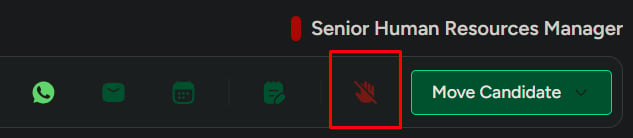
Click Disqualify
The disqualify dialog opens.
3
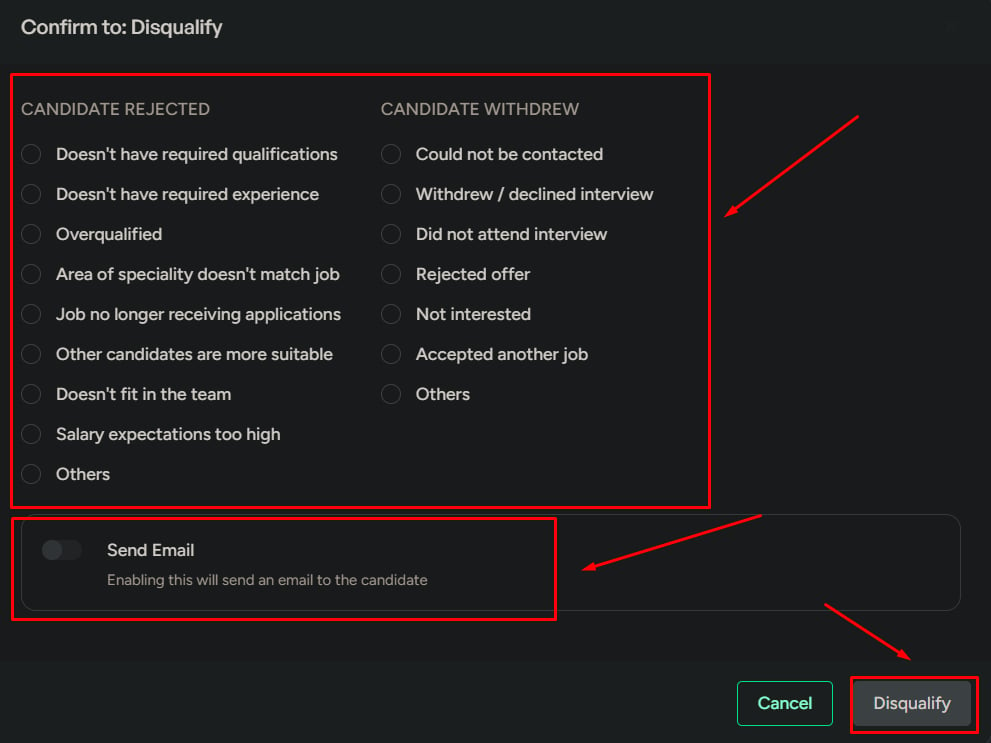
Select a reason
Pick from the predefined reasons configured for your workspace.
4
Choose whether to send an email
Optionally send the candidate a standard rejection email.
5
Confirm
The candidate is removed from this job but remains available for other roles.
What happens next
- The candidate is removed from the current job pipeline.
- The candidate remains available for other jobs.
Blacklist a candidate
Use this when the candidate shouldn’t be considered for any role.1
Open the candidate profile
Open the candidate from the job’s pipeline or the Candidates list.
2
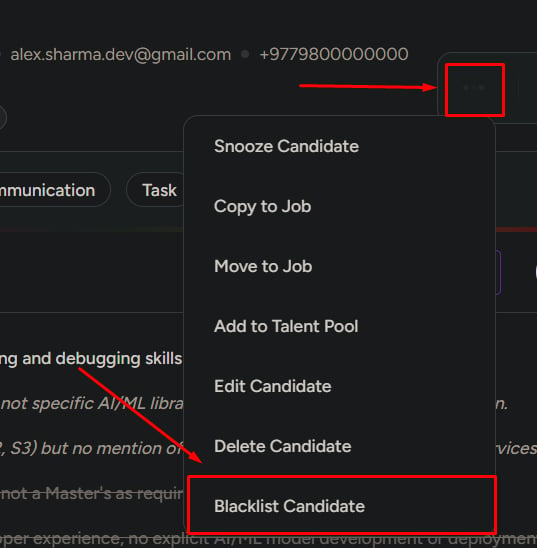
Open the options menu
Click Options in the action bar.
3
Select Blacklist Candidate
The blacklist dialog opens.
4
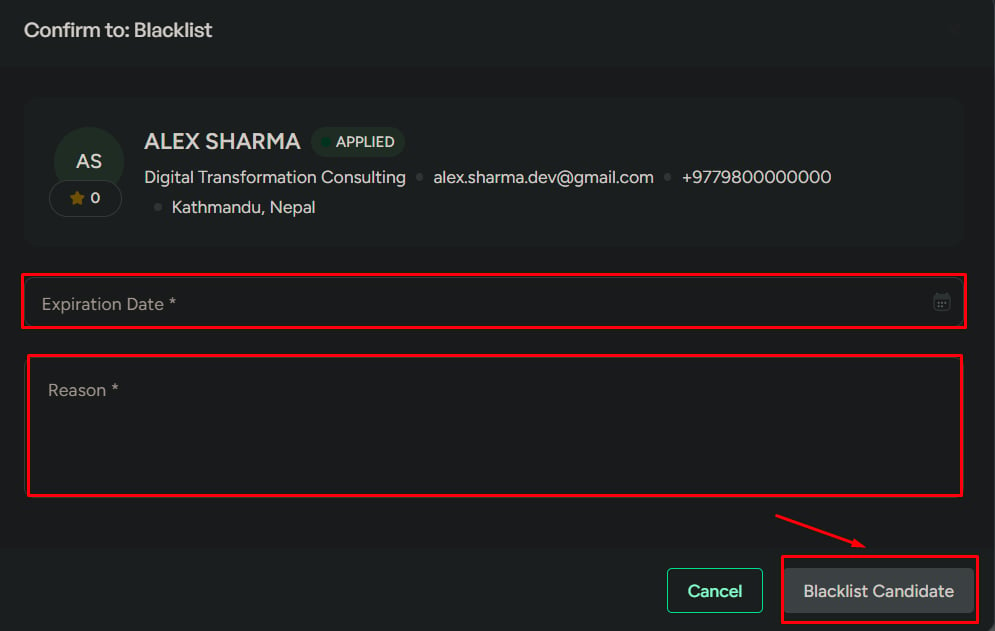
Select a reason
Pick from your workspace’s predefined blacklist reasons.
5
Set an expiration date
The expiration date controls how long the restriction applies.
6
Confirm
The candidate is added to Blacklisted Candidates and automatically disqualified across active jobs.
What happens next
- The candidate is added to Blacklisted Candidates.
- The candidate is automatically disqualified in active jobs.
- The candidate cannot be considered while the blacklist is active.
View blacklisted candidates
1
Go to Candidates
Open Candidates from the left menu.
2
Open Blacklisted Candidates
Filter the view to only restricted profiles.
3
Select a candidate
Open the candidate profile to review details.
4
Remove from blacklist
Click Remove from Blacklist to lift the restriction.


What happens next
- The candidate is no longer restricted.
- The candidate becomes active again.
- The candidate can be considered for jobs going forward.
- The candidate is not added back to any job automatically.
Important to remember
Related
View candidate details
Tour the profile and every available action.
Manage candidates
Cross-job candidate list, search, and filter.